
The Dashboard builder is a tool that enables you to customize the academy home page for both managers and learners. In fact, you have multiple templates set up and toggle these on and off as you wish.
Where Widget Dashboard really takes off to the next level, is the ability to move the Widgets around and customize your own dashboard based on what’s important to you.
When you next visit Admin Dashboard > Settings > Dashboard Builder you will find this:
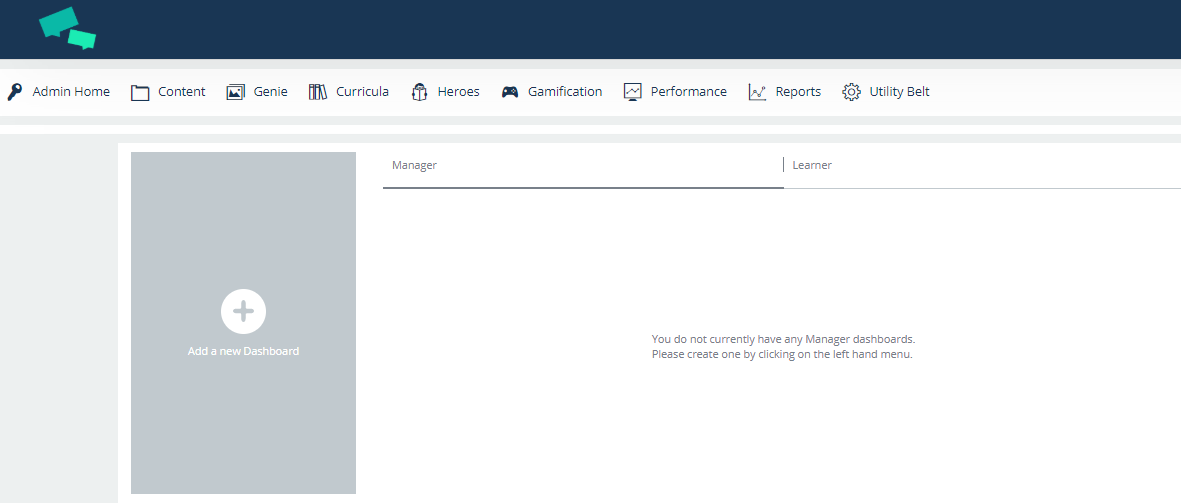
When you click on Add New Dashboard you will be presented with the following screen on the left-hand side. It’s a very simple set of tasks to kick off with.
Provide a simple name, and description, as this will be more and more important the more dashboards that are created by Admin. Also decide which Role this Dashboard will be presented to, either Managers or Learners.
Hit Save and move on to the fun stuff!
Building Blocks

What would you like to build? You can build ANYTHING! Within reason. There are a select number of widgets currently available to clients and you can move these around and change their sizes to suit what you’re looking for.
Select ‘Edit’ on the above image to be presented with the below Builder:
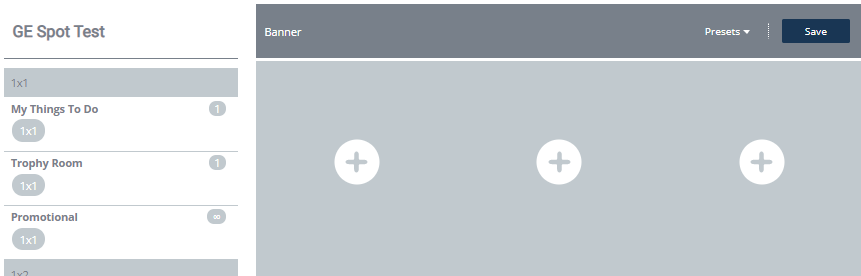
The Widgets on the left-hand side are to be dragged and dropped onto the Builder. Click and hold down on the Widgets you select then move the Widget and let go once in the slot you desire.
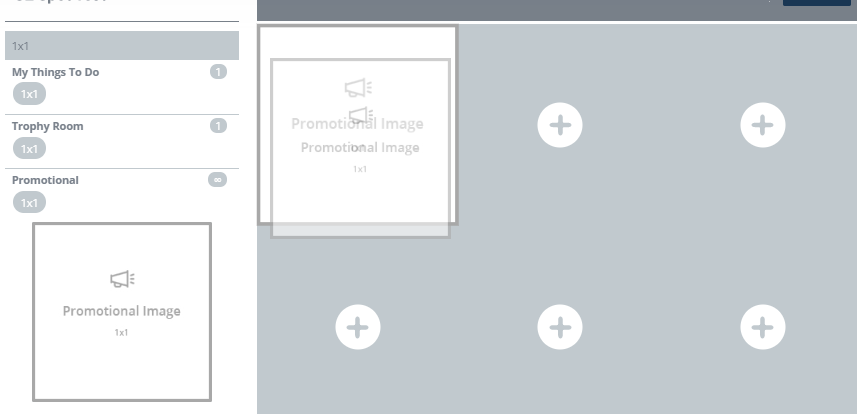
Alternatively, you can click on the Plus sign on the Dashboard to select which Widgets you want to place as below:
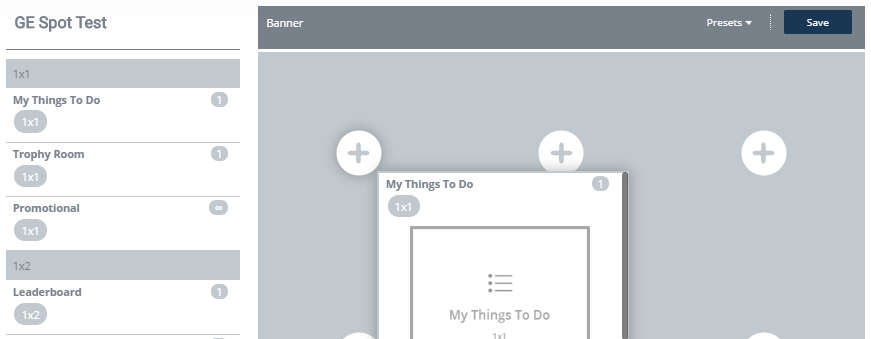
Once you have started placing Widgets on your Widget Dashboard, you can then move them around to select where to place them.
At the bottom of the Builder, you will see the below text. You are able to add and remove rows from the Dashboard to populate as many Widgets as you like!

Once you have finished building your Widget Dashboard, select Save at the top of the screen. You will be kept on this page, so you will need to visit the Admin Dashboard again to see the Dashboard Manager.
Nominating The Chosen Homepage
When you have multiple Dashboards created, you will need to set the Dashboard that is to appear to your Managers / Learners. Whilst you can create a Dashboard for all Learners, and all Managers, only one Dashboard will be enabled at any one time. This is set by the Dashboard Manager view. NOTE: You can have more than one dashboard online (this is a known bug) and it will display the Dashboard with the lower ID. Best practice is to make sure only one Dashboard per Manager and per Learner are switched online.