
Images and videos shared in Club posts can be downloaded from both the LMS and App, making it easy to save media for future reference. This guide explains how to download supported media on each platform.
Downloading Media on the LMS
For Images:
1. Right click on the image you wish to download.
2. Click on the Save Image As..
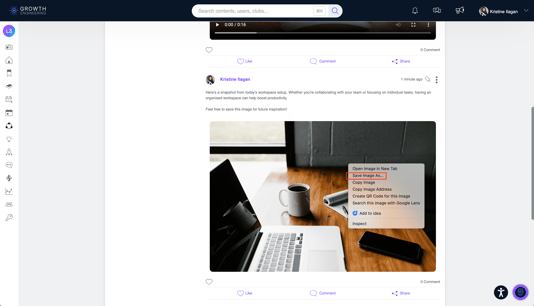
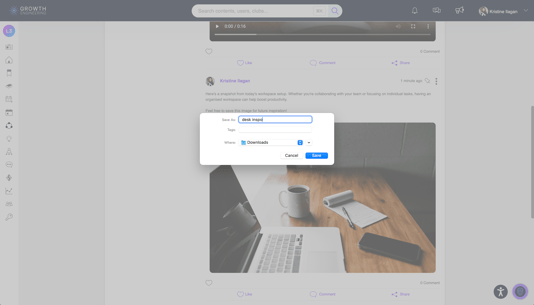
3. Enter a file name and select a folder or simply click the Save button.
For Videos:
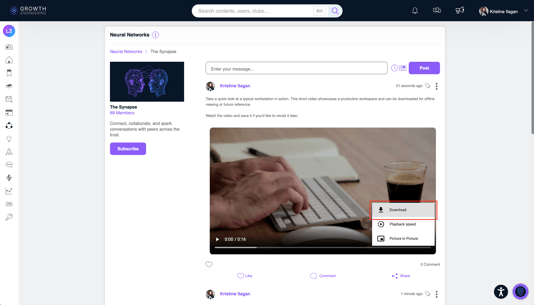
1. Click on the more actions icon (three-dot menu) on the lower right part of the video.
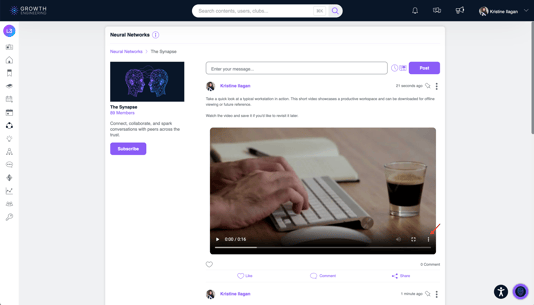
2. Click on Download. Video will be automatically downloaded.
Downloading Media on the App
For Images:
1. Tap on the image you wish to download.
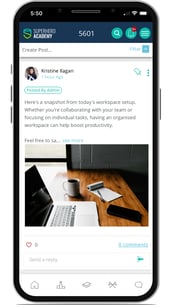
2. Tap the Download icon.
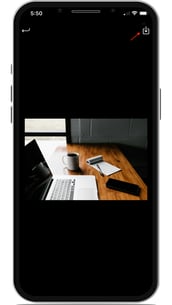
3. Press on the image until a modal pops up.
4. Tap on Save to Photos.
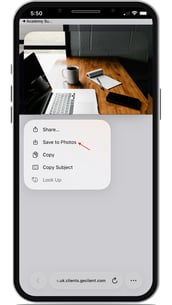
For Videos:
1. Tap the Download icon on the video.
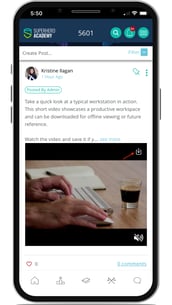
2. Exit the full screen of the video by tapping on the X icon.
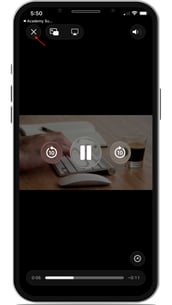
3. Tap on the three-dot menu on the lower right part of the screen.
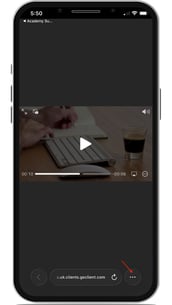
4. Tap on Share.
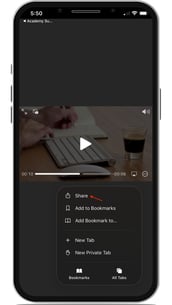
5. Then tap on Save to Files.
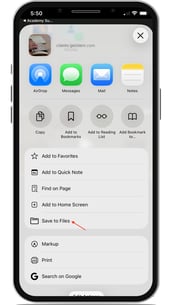
📌 Note: On Android devices, tapping the Download icon will automatically download the video to your device.
You're Ready to Go
You can now download images and videos from Club posts using the LMS or App. This makes it easy to save useful media for future reference or offline viewing.
If you'd like to enable this feature on your App, please contact your Customer Success Manager or reach out to the support@growthengineering.co.uk.