
eLearning Multi-Language Support allows admins to provide the same eLearning content in multiple languages, making learning more accessible to a global audience. This guide explains how multi-language eLearning works, how admins can set up and manage translations, and how the selected language is presented to learners when they access the content.
🌐 How It Works
📚 One eLearning, Multiple Language Versions
SCORM or Video files in different languages can be uploaded within a single eLearning. Each language version is managed under the same eLearning rather than requiring separate courses for each language.
✨ AI Auto-Translate for Text Fields
The AI Auto-Translate option allows admins to automatically translate text fields such as the Title, Description, and Keywords. Admins can choose to translate the content into the selected language or translate it into all available languages at once, making it easier to prepare the eLearning for multiple language audiences.
🗣️ Language Based on Learner Preferences
When a learner accesses the eLearning, the platform automatically presents the language version that matches their default language.
Learners can also switch between available languages if they prefer to view the eLearning in another supported language.
📊 Consolidated Reporting
Regardless of which language version a learner completes, the activity is recorded against the same eLearning. This means reporting maintains one record for the eLearning, rather than creating separate records for each language version.
🛠️ How to Set Up Multi-Language eLearning
Follow the steps below to create an eLearning with multiple language versions.
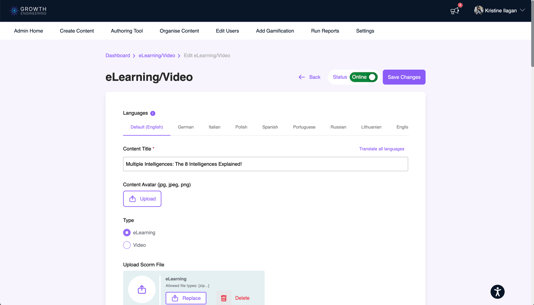
1. Complete the eLearning Form
Fill in the required fields in the eLearning form, including the title, description, keywords, and other relevant details.
2. Upload SCORM or Video Files for Each Language
Navigate to the relevant language tab and upload the corresponding SCORM or Video file for that language.
Repeat this for each language version you want to make available within the eLearning.
3. Translate the Text Fields
Enter or translate the Title, Description, and Keywords for each language tab.
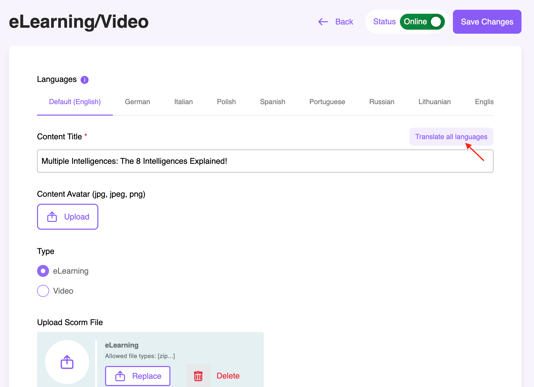
You can use either of the following AI translation options:
- Translate all languages – Automatically translates the text fields into all available languages.
- Auto-translate from English – Automatically translates the text fields from English into the selected language.
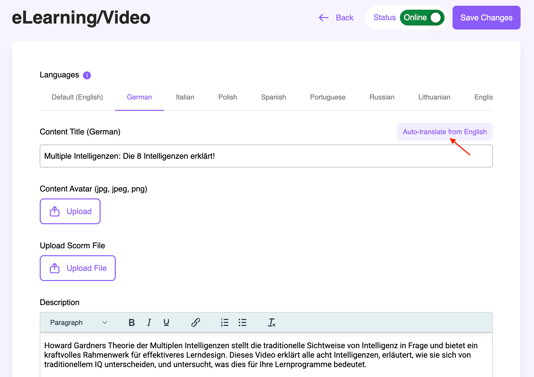
🤓 Review the translated content and make any necessary adjustments before saving the eLearning.
👀 How It Looks for the Learner
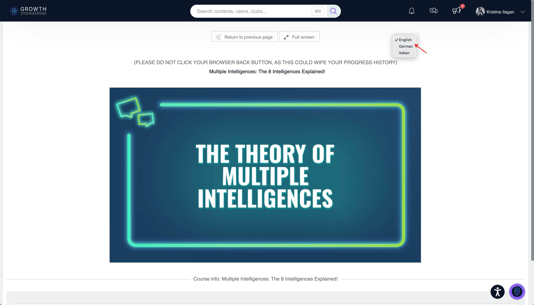
When learners access a multi-language eLearning, the platform automatically displays the language that matches their configured language preference.
1. Default Language
The eLearning opens in the language set for the learner’s profile, if a version is available in that language. If no version is available in the learner’s configured language, English will be displayed by default.
2. Switch Between Languages
Learners can switch to another available language at any time using the language switcher on the eLearning page. This allows them to select their preferred language without needing to leave or restart the eLearning.
3. Bookmarked Progress
Learner progress is bookmarked across language versions. If a learner switches to another language and later returns to their default language, they can continue from where they left off rather than starting the eLearning again.
📘 Get Started With Multi-Language eLearning
eLearning Multi-Language Support makes it easier to provide accessible learning experiences across different languages while keeping content, learner progress, and reporting within a single eLearning.
✅ If you’d like to have eLearning Multi-Language Support enabled for your platform, please reach out to your Customer Success Manager.