
The Forced Waitlist feature gives admins greater control over registrations for Classroom Events by allowing them to place learners on a waitlist instead of immediately confirming their attendance.
When enabled, learners who register for an event are automatically added to the waitlist, regardless of whether spaces are still available. This allows admins to manage registrations more effectively and review attendance before confirming places.
🛠️ How to Enable Forced Waitlist
1. Set up an event by going to Admin > Contents > Events.
2. On the event setup form, click the Force Waitlist check box.
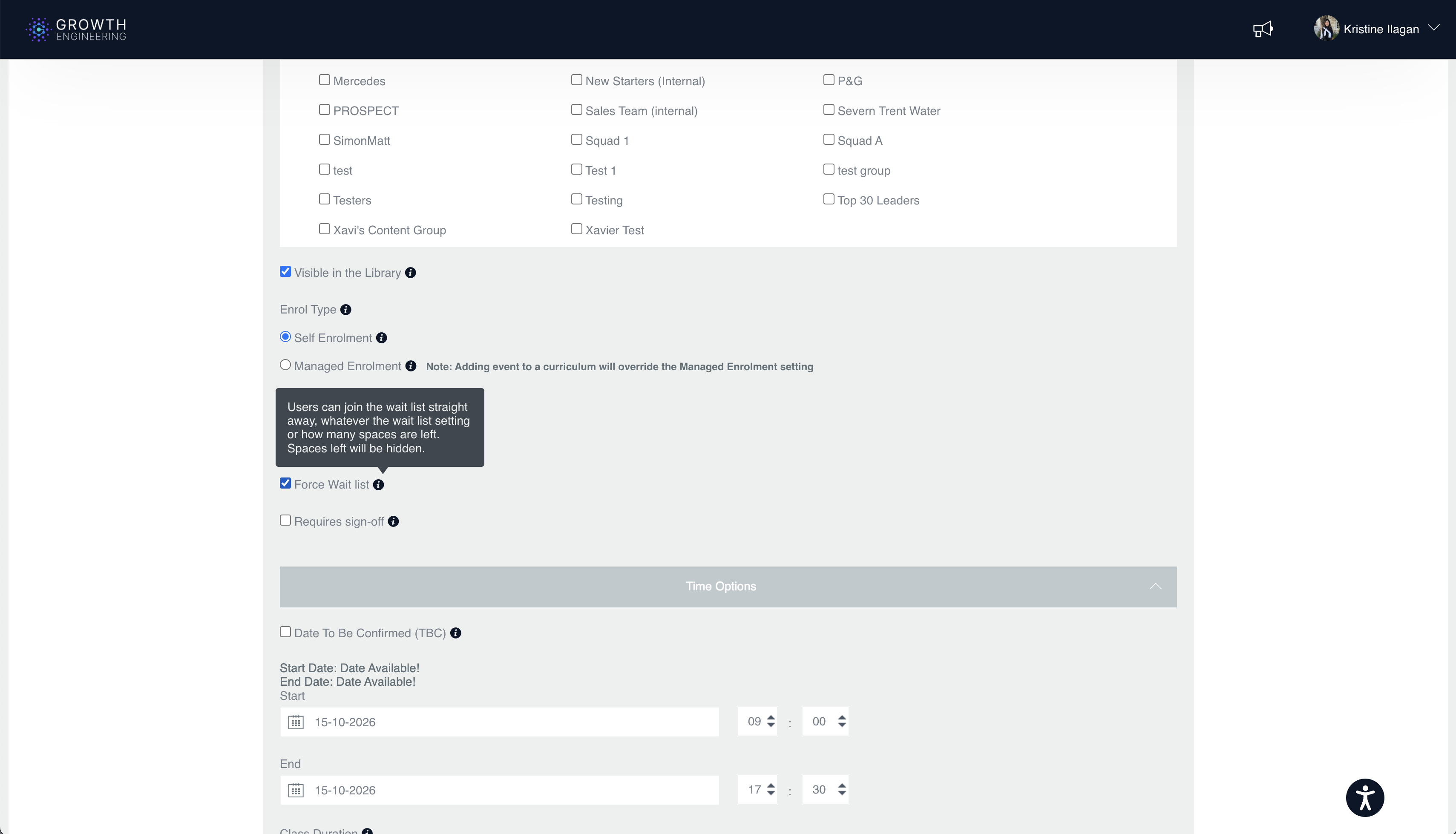
3. Save the event.
🎟️ Forced Waitlist: Learner View
1. View the Event
Learners can browse and access the Classroom Event as usual. However, the number of available spaces will be hidden while Forced Waitlist is enabled.
2. Join the Waitlist
When learners click the Join the Waitlist button , they will be automatically placed on the waitlist and will receive a join waitlist email confirmation.
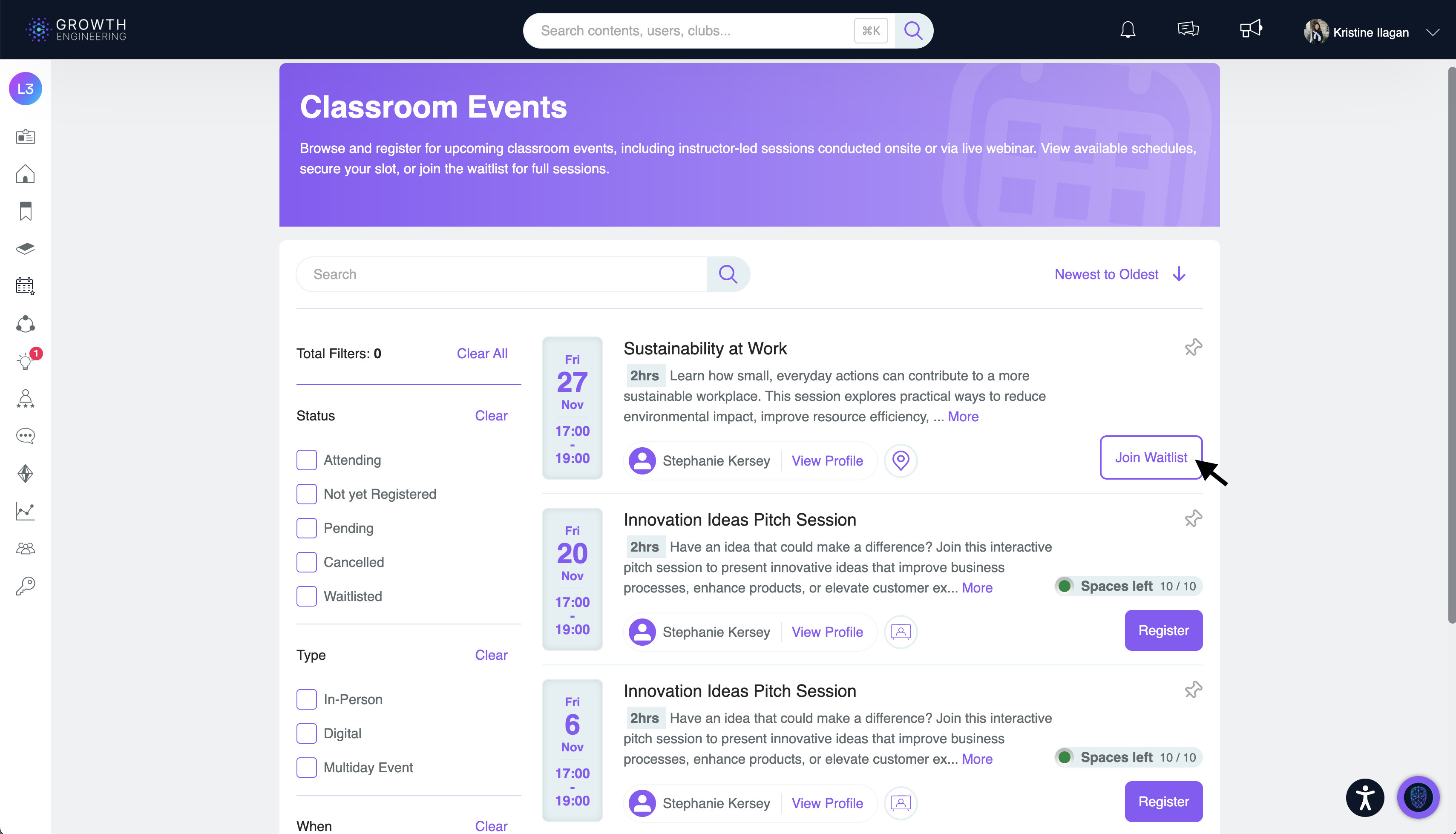
3. View Registration Status
Learners will see their registration reflected as Waitlisted rather than confirmed, indicating that they have not yet secured a place in the event.
4. Standard Registration Experience
Once the admin disables Forced Waitlist or manually enrolls learners on waitlist, learners will be automatically registered to the event.
⚠️ Important Notes on Waitlist Management
The Forced Waitlist feature follows the existing waitlist process, with a few important considerations when disabling the setting.
- First-Come, First-Served Queue: The standard waitlist process remains unchanged. Learners are prioritised based on the order in which they joined the waitlist.
- Check Maximum Spaces Before Disabling: Before disabling Forced Waitlist, admins should ensure that the event's maximum capacity is sufficient to accommodate all waitlisted learners if they intend to confirm everyone's attendance.
-
Learners Exceeding Maximum Capacity: Learners who cannot be accommodated within the event's maximum capacity will remain on the waitlist until an admin manually enrols them or increases the number of available spaces.
Reminder: Always review the number of waitlisted learners and the event's maximum capacity before disabling Forced Waitlist to avoid leaving learners on the waitlist unintentionally.
🗓️ Ready to Manage Event Registrations
The Forced Waitlist feature gives admins greater flexibility and control over Classroom Event registrations while maintaining a fair, first-come, first-served process.
For additional guidance or assistance, please reach out to your Customer Success Manager or email support@growthengineering.co.uk.