
The Google Calendar Integration allows Classroom Events to automatically sync to learners' Google Calendars, helping them stay up to date with upcoming sessions and training activities.
This guide explains how to configure the integration, connect Google Calendar, and manage Google Calendar synchronisation settings from the LMS.
⚙️ Admin Configuration
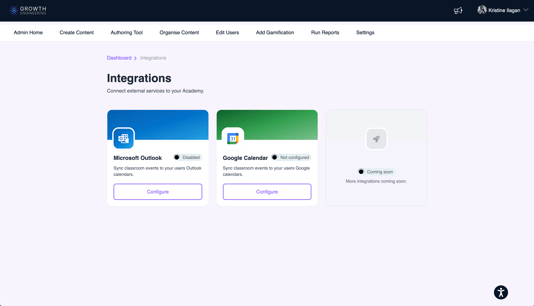
1. Go to Admin Dashboard > Settings > Integrations.
2. Click Configure under the Google Calendar.
3. Enter your organisation Google Workspace domain, then click Save and Continue.
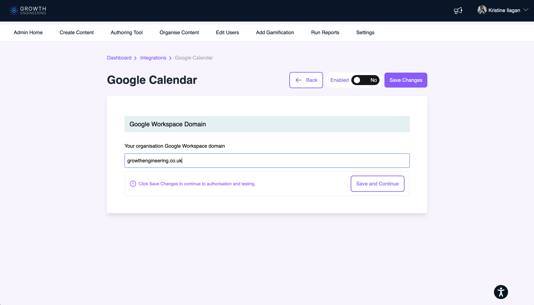
4. Click on the Open Admin console and follow the instructions to grant access and authorise the LMS to connect with Google Calendar.
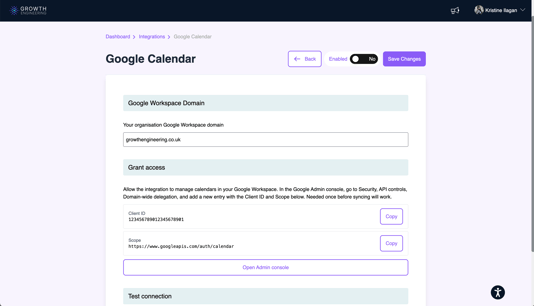
5. In the console, click on Add new.
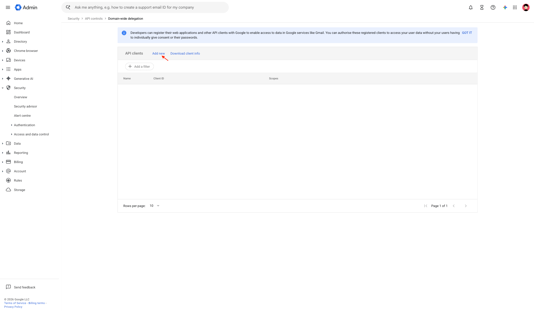
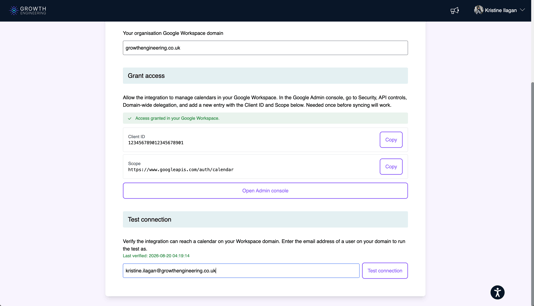
6. Copy the Client ID and OAuth Scope from the LMS and enter them in the corresponding fields in the Admin Console.
7. Click Authorise.
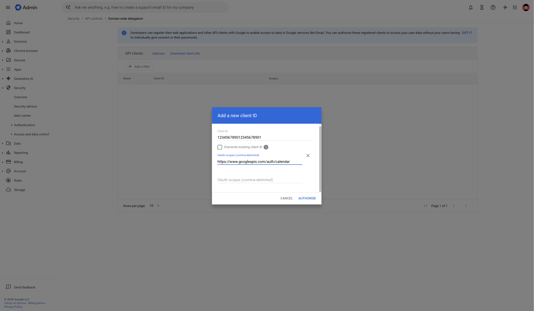
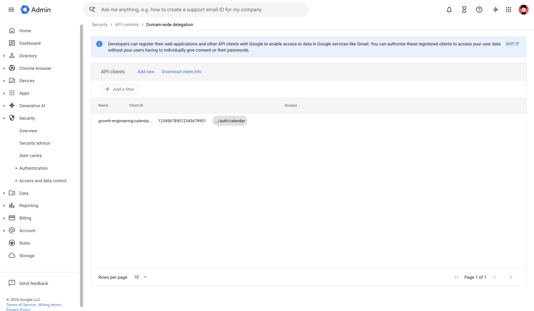
8. You will see that the domain is now added.
9. On the LMS, type in your google email address, and click Test connection. You will see a successful test confirmation message.
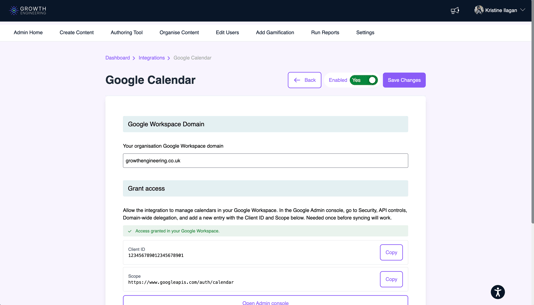
10. Once verified, set the Enabled to Yes, then click Save Changes.
📅 What Learners Can Expect
Once the integration is configured, when a learner is registered for a Classroom Event, they will receive an email containing the event details. The event will also be automatically added to their Google Calendar, making it easier to keep track of upcoming sessions and training activities.
The calendar event includes relevant details such as the event name, date, time, and location, where applicable.
This helps learners stay informed about their upcoming learning commitments without needing to manually add each event to their calendar.
✅ Google Calendar Connected
Your Google Calendar is now connected to the LMS, making it easier to keep track of your upcoming Classroom Events alongside your other commitments.