
Running a new report is simple!
You can choose the following items:
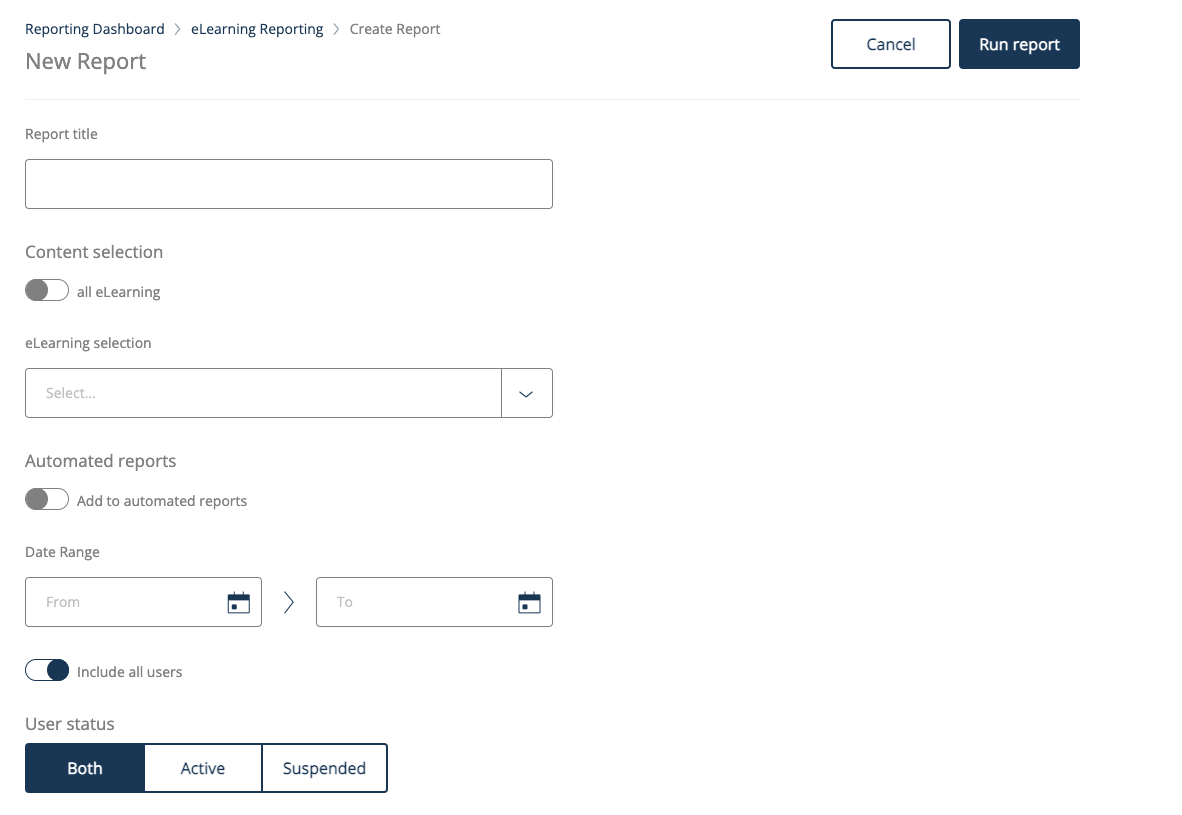
What to report on; for example, all content or a couple of pieces of content
When to report on; the period which you would like to report on
Who to report; choose the learner groups you could like to report on.
How to run a new report?
Start by clicking on the report type from the dashboard and click on “ New Report”.
Add in report title; this will pull into the report file
Choose content either by title or toggling the “all' indicator to pull in all content
Choose if you would like the add this to the automated report by clicking on the toggle on or off
Choose the date range
-
Choose the users group either by including all users (Default) or by user groups by changing the toggle to off on all users
You can also select users by active or offline or both (Default)
Finally, for some reports, you can also filter by the status of the content progression. Typically, it is best to leave all of these on.
Click to run the report and wait for the new page to load with the results!