
The To Be Confirmed (TBC) Events functionality allows admins to create and manage events when the schedule has not yet been finalised. This gives admins greater flexibility when planning events, allowing them to make events available to learners before the date and time have been confirmed.
TBC Events are supported within the updated Events interface, providing a consistent experience for admins managing event schedules and learners browsing available events.
🛠️ Configuring TBC Events
1. Set up an event by going to Admin > Contents > Events.
2. On the event setup form, click the Date To Be Confirmed (TBC) check box.
📌 Events marked as TBC will appear under the TBC tab.
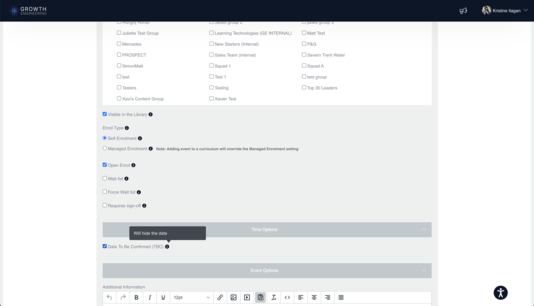
3. Save the event.
🗓️ Viewing and Registering for TBC Events
1. View the TBC Event
Learners can browse the Events page and view events marked as TBC, indicating that the schedule is yet to be confirmed. They can also use the TBC filter to easily find events with unconfirmed schedules.
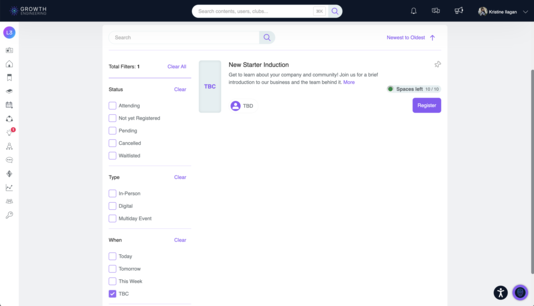
2. View Event Details
Learners can access the event details to learn more about the session, including its title, description, and other available information.
3. Register for a TBC Event
Learners can register for a TBC event while the schedule is still being finalised. Upon registration, they will receive a confirmation email.
🗒️ Schedule Updates: When an admin updates the event details, such as the date and time, registered attendees will receive a confirmation email with the updated information. The event will also be added to their calendar automatically.
🗓️ Plan Ahead With TBC Events
TBC Events give admins the flexibility to publish and manage events before the schedule is finalised, while allowing learners to discover events and register in advance.
Once the event details are confirmed, registered attendees receive an email notification with the updated information, and the event is automatically added to their calendar.
For additional guidance or assistance, please reach out to your Customer Success Manager or email support@growthengineering.co.uk.