
Admin dashboard is available for the Users that have Admin access level in their settings. This is the place to create, customize and administer the platform. Let's now review the details of the admin dashboard.
How to access the dashboard?
When you first log in login on the Academy LMS, you are directed to the learner dashboard.
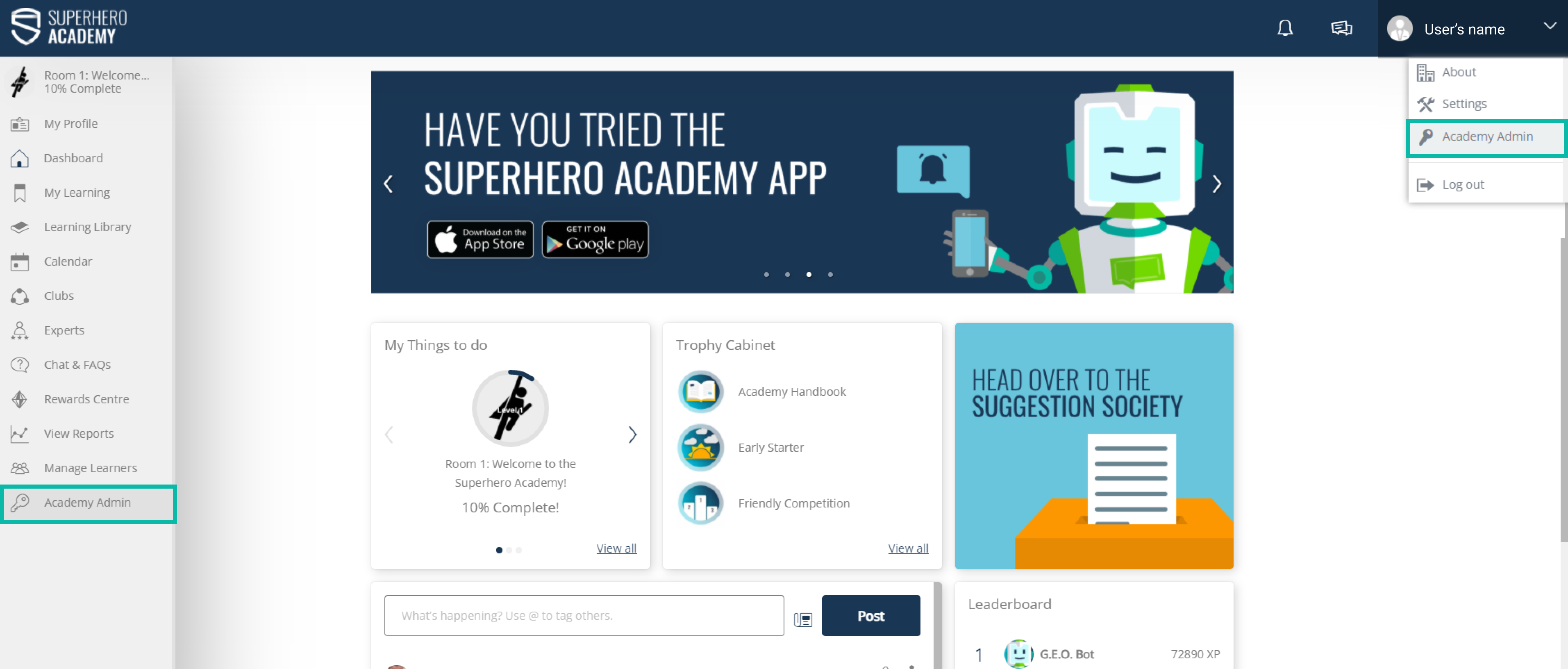
Admin can move to the Admin dashboard either of 2 ways:
-
a link at the bottom of a Sidebar
-
a link in the top right corner of the Platform
Here is an overview of the Admin dashboard home page:

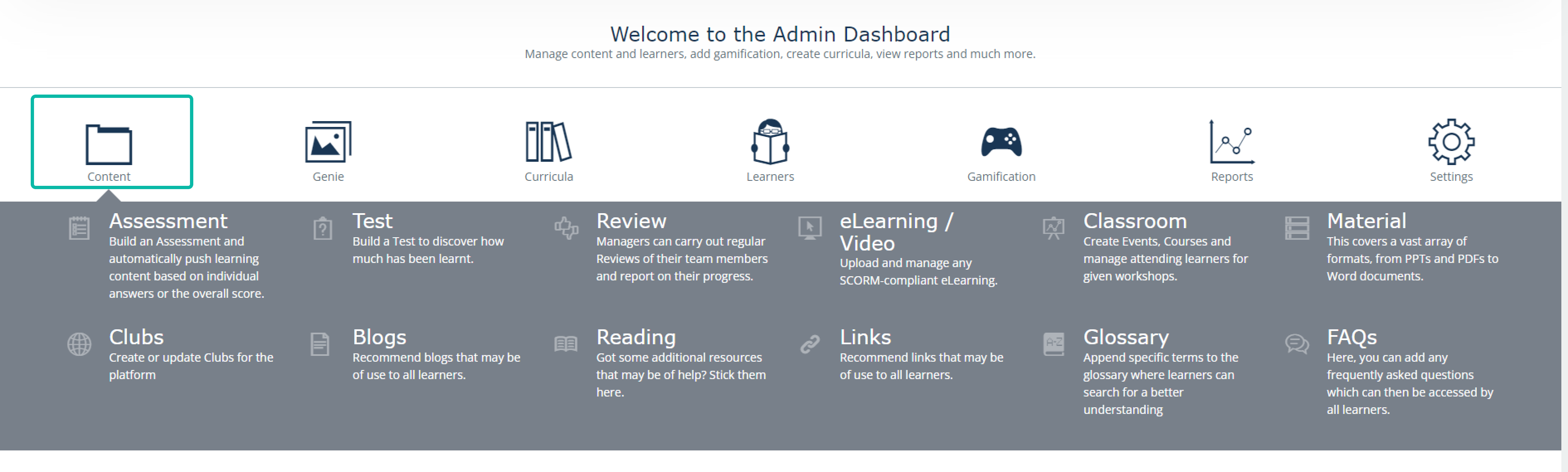
By clicking on the Icons Admin will see an expanding menu of inner sections that could be managed.
Content section
Here Admin can create, edit, upload, and manage different types of LMS content. See our section on Admin content types to learn more about each section: Click here
Genie section
The Genie section allows Admin to build dynamic and gamified content, such as Quests and Battles. Here Admin can also access the link to invite Learners to take part in that content.

Curricula section
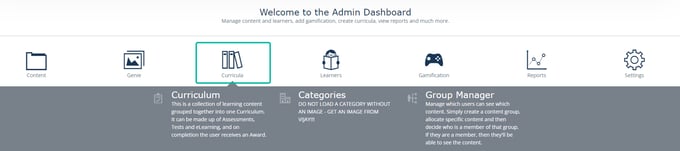
Curriculum: Here Admin finds a Curriculum builder, which allows creating a whole Learning course with a variety of different contents, such as tests, assessments, materials, eLearning, accumulated together and ordered with special settings. For more details on curricula, click here.
The categories section is aimed at creating and managing categories in the LMS Library. The category is a required parameter to be set while creating content items. You can learn more about categories here.
Group Manager: Here Admin can manage which users can see which content. Simply create a content group, allocate specific content and then decide who is a member of that group. If they are a member, then they'll be able to see the content in their libraries. Learn more about group managers here.
Learners section
Proceeding with this section Admin can:
-
Create and manage Learners accounts
-
Edit and manage hierarchies and create teams for learners and managers
-
Send invitations to the chosen Learners to complete selected pieces of content
-
Schedule notifications for the Learners (note this is for App use only)
-
Bulk upload multiple users to the LMS at a time. recommended if there are more than 10 new learners per month (otherwise manually is fine)
-
Through Access levels configure permissions to access certain functionality on LMS

Hint: A nice feature to log in as any Learner of the Platform is available for the Admin following the path Admin Dashboard > Learners > Any needed Learner - Edit mode > Login as User tab.
Top tip: You can create editable access levels and for example create a “restricted admin” access, whereby Admin dashboard can be available only partly i.e. with access to selected items.
Gamification section
Gamification is a key part of what makes this LMS so engaging but setting it up is a big task!
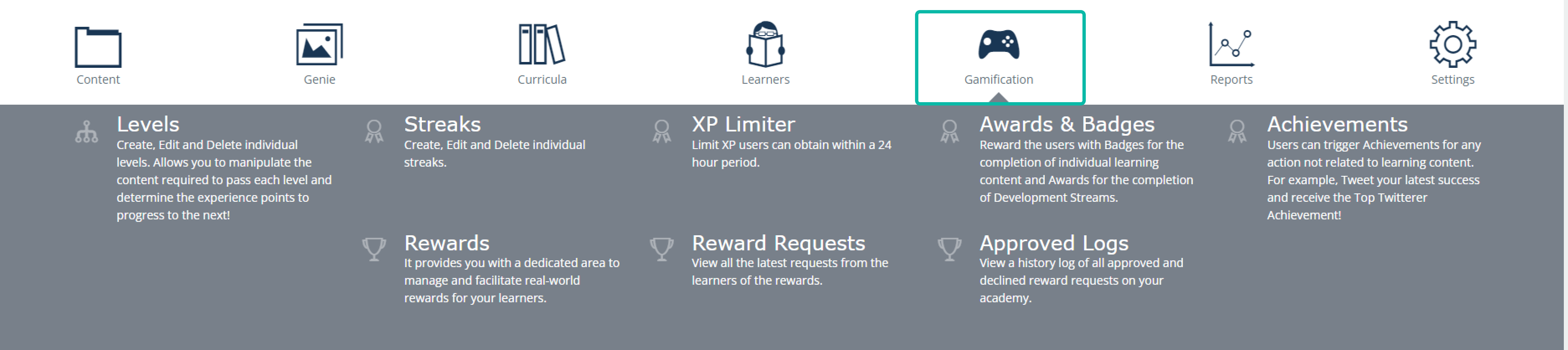
This section contains a bunch of settings that will help to gamify the learning process for the Learners:
-
Levels: This allows you to manipulate the content required to pass each level and determine the experience points to progress to the next one.
-
Streaks: Create streak milestones (App only),
-
XP (experience points) Limiter (App only),
-
Awards & Badges: In this section, you can create badges and other achievements that can be assigned for content and curriculum
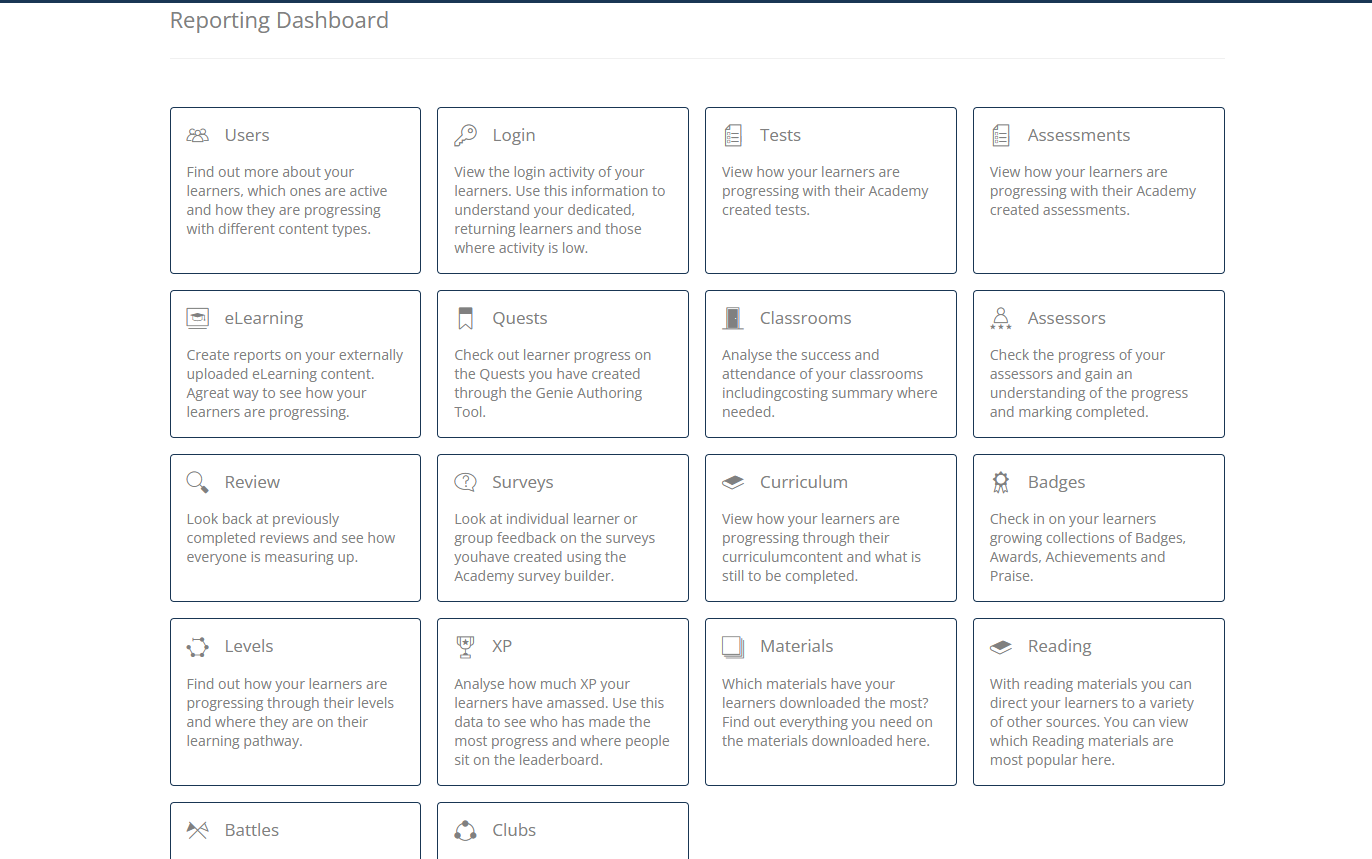
Reports section
Admin has full access to the entire reporting suite in this section.
Admin can run different types of reports according to their needs and then email or download results directly from the LMS as well as see them on the Platform in real-time. Just remember that the export file of each report is more detailed.
Admin can also set up scheduled reports, for example, a monthly review of log-in numbers to assess engagement. This will send you an email when the report is completed with the compiled data.

Settings section
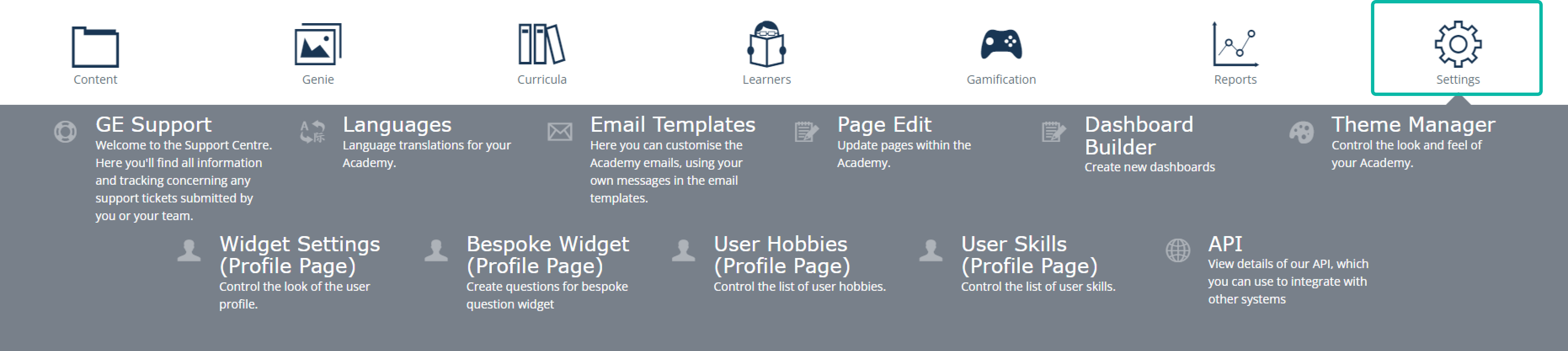
This section helps Admin to establish all necessary platform settings, choose language and theme, build a Learner’s dashboard, manage LMS widgets and, in a nutshell, organize a Learner’s space the most preferable way.
Follow the links to learn more details from each section.