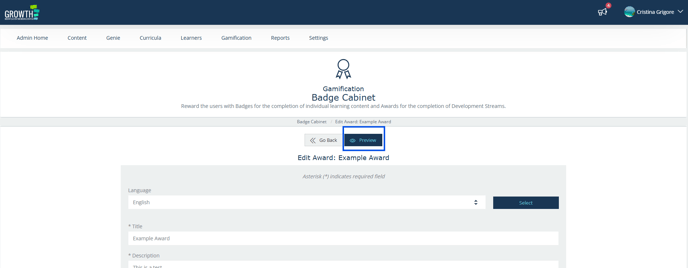
Step 1: From the user dashboard, navigate to the Admin Home
- From the left-hand menu or from the top right profile arrow, click on the Academy Admin button.
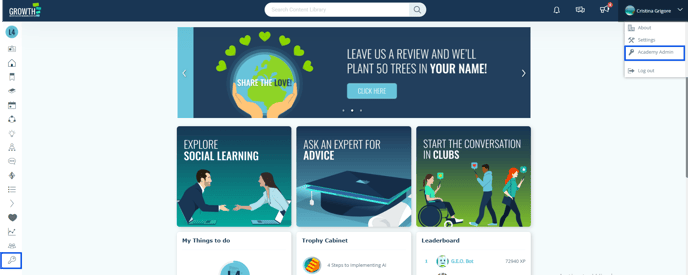
- From the Academy Admin dashboard, click on Gamification
- From the Gamification dropdown menu, select badge cabinet
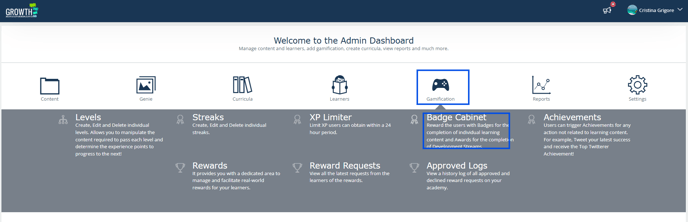
Step 2: Click ‘New Award’
- From the Badge Cabinet page, select New Award. This will open the page with fields to be completed for the award creation.
Step 3: Complete the available fields, from top to bottom
- Title: Add the desired title for the award
- Description: This can be placeholder text, as the final copy will be overwritten by the content added in the code editor. Something like “Description here” is sufficient. The form simply requires content in this field to save.
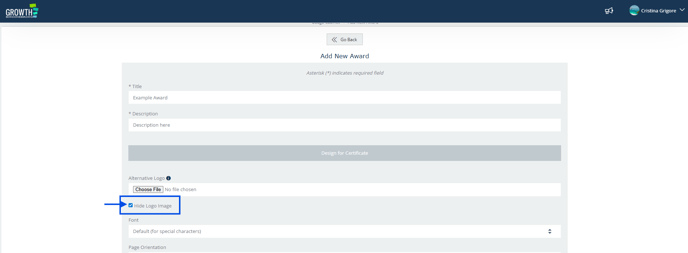
- Tick ‘Hide logo image’: This is because the logo will be embedded into the background image you’ll upload.
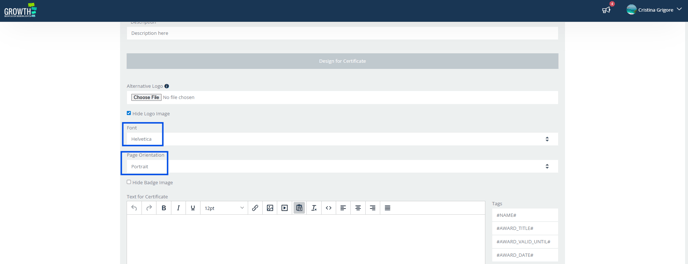
- Font: Select Helvetica from the font options.
- Page orientation: Leave as is Portrait.
Step 4: Add your custom HTML
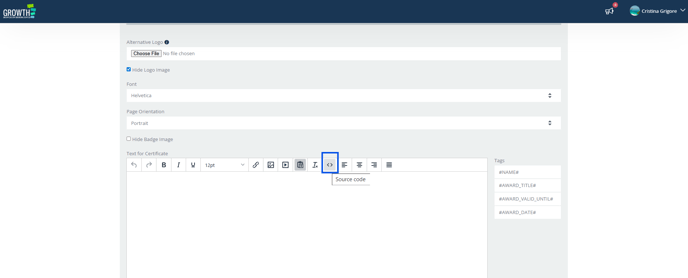
Click the ‘Source Code’ button: 
Paste the following code into the editor:
<div style="text-align: left; font-family: sans-serif; colour: white; padding: 60px 0;">
<div style="width: 500px; word-wrap: break-word;">
<div style="margin-top: 60px; line-height: 0.4;">
<h1 style="font-size: 36px; margin: 0;">Congratulations</h1>
</div>
<div style="margin-top: 50px; font-size: 18pt; line-height: 0.5;">
<p style="margin: 0;">This is to certify that <strong>#NAME#</strong></p>
<p style="font-size: 14pt; margin: 5px 0 0;">has successfully completed the</p>
<p style="font-size: 32pt; line-height: 0.9; margin: 20px 0 5px;"><strong>#AWARD_TITLE#</strong></p>
<p style="font-size: 12pt; line-height: 1.1; margin-top: 5px;">*** PUT YOUR CERTIFICATE DESCRIPTION HERE ***</p>
</div>
<div style="margin-top: 40px; line-height: 0.6;">
<p><strong>Date Awarded: #AWARD_DATE#</strong></p>
<p><strong>Certificate ID: [Unique ID]</strong></p>
</div>
</div>
</div>
⚠️ Please note: this will turn the text white. It will appear this way within the ‘Text for Certificate’ field, meaning the copy will no longer be visible in that view.
From this point onwards, any changes you wish to make to the text must be done within the code editor.
🛠️ Step 5: Customising the Certificate ID:
- The [Unique ID] in the code is a manually entered value. It is not automatically generated.
- You must ensure that each certificate has a unique ID if you are issuing multiple certificates.
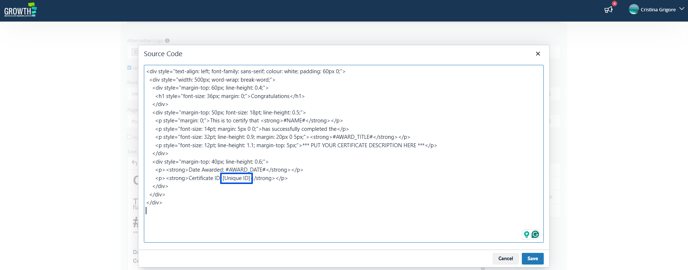
If a Certificate ID is not required, you may remove the line entirely:
<p><strong>Certificate ID: [Unique ID]</strong></p>
Find the placeholder text:
*** PUT YOUR CERTIFICATE DESCRIPTION HERE ***
Replace it with your chosen description. This is the text that will appear on the final PDF.
⚠️ Be careful not to delete or overwrite any of the surrounding HTML code.
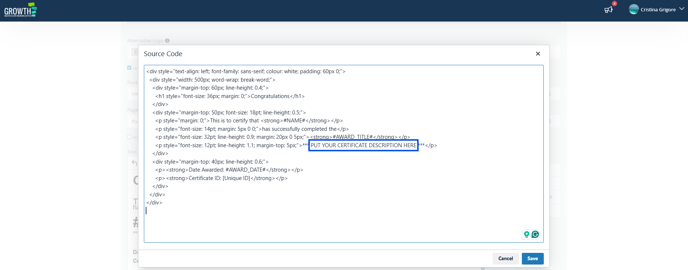
Once you are happy with the description, click ‘Save’ within the Code editor.
Step 6: Upload the Background & Save Your Changes
Here are two options for the certificate background:
- Choose from the existing PDF Backgrounds
- Upload the JPEG version of the master certificate artwork that has been exported from the master Illustrator file provided (Instructions for optimum setting can be found within the file).
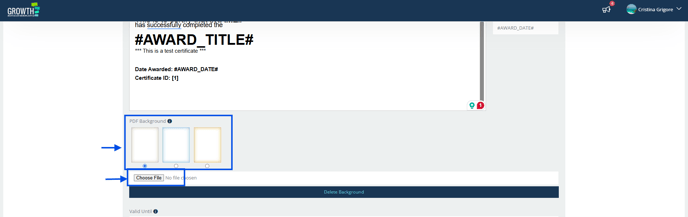
Step 7: Preview the final PDF
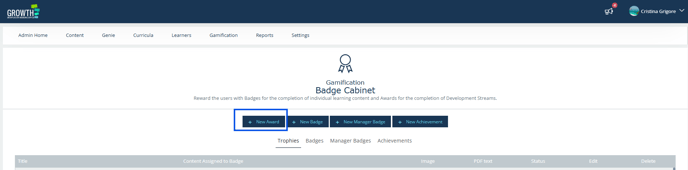
Find your certificate in the listing, click Edit next to your certificate. 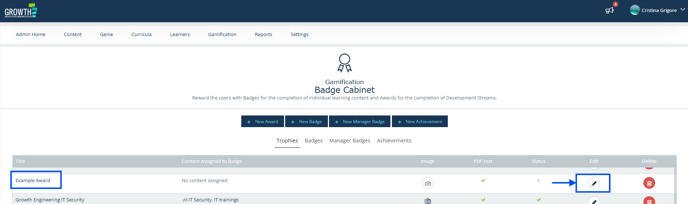
Next step is to click Preview – this will download a PDF for you to check.