
“Experts by Content '' is an editable expert access level that can be created by platform admins and made available only to desired Content Groups.
Set Up the “Expert by Content” in the admin panel
Step 1- Where to find the Access Levels
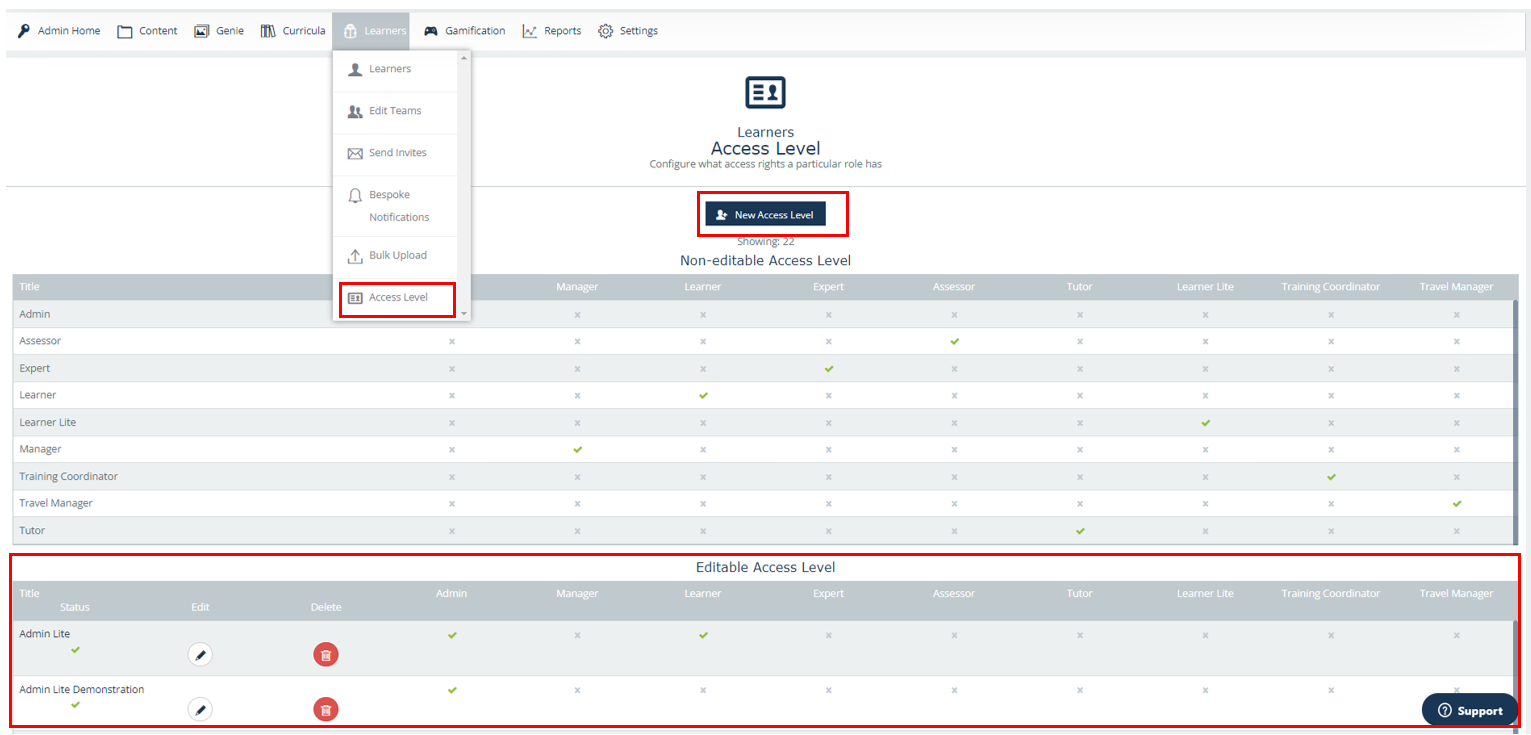
To create an Expert by content group, the admin must go to the Access Level section from the admin Dashboard.
Step 2- How to create the “Expert by Content”
Clicking on “New Access Level”, the admin can create a new editable access level.
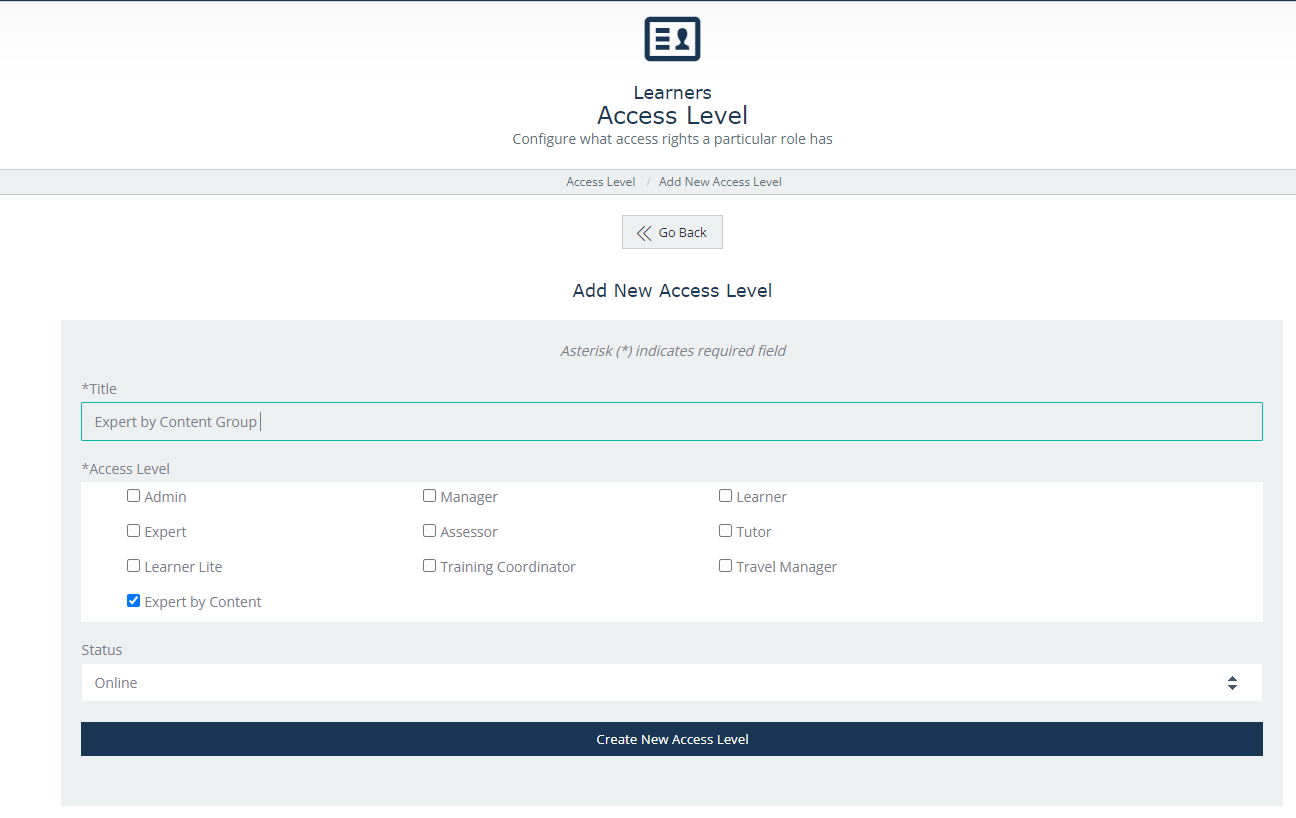
The role can be named as you like. Then click on the “Expert by Content” box in the access level section (please see the image below) and click create a new access level to create your role for the experts by content groups.
Step 3- How to allocate Content Groups to “Expert by Content”
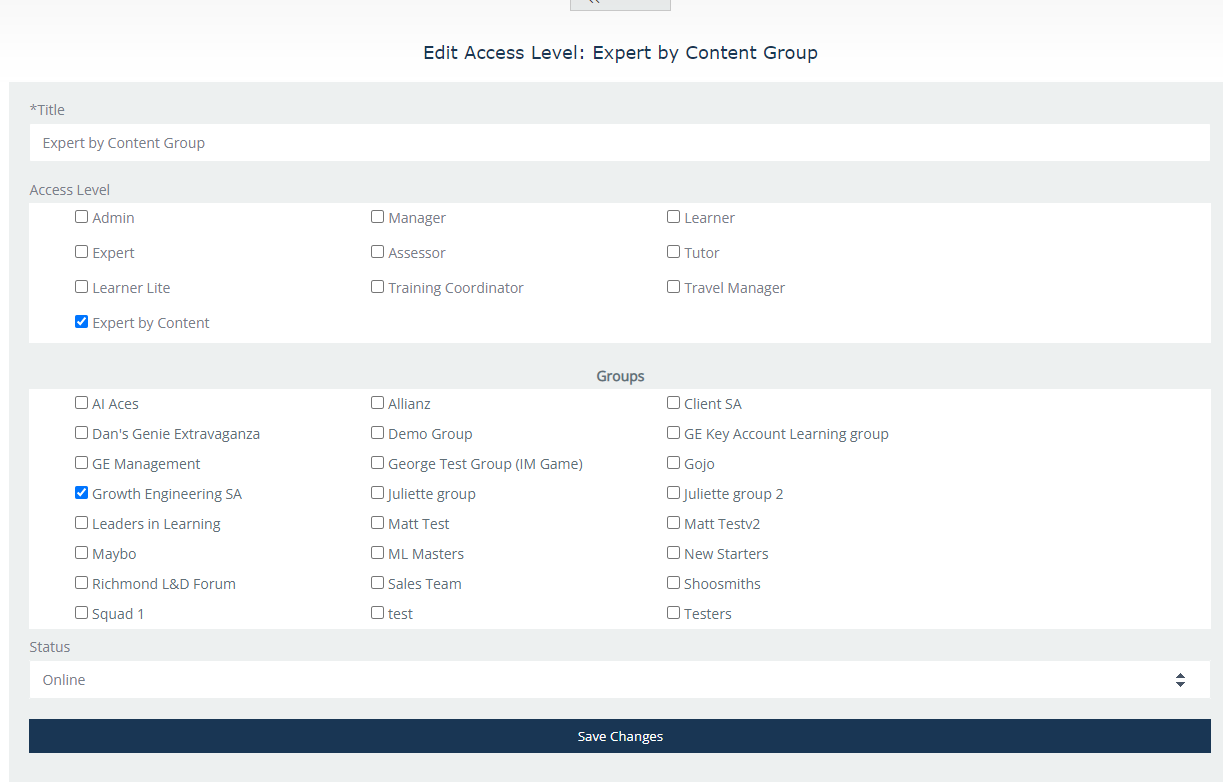
From the Editable Access Level list, select the “Expert by Content” access just created, in order to allocate the content groups. You can see these below the “Groups’ section.
Select the ones you would like for this role to have access to and save the changes.
Step 4- Allocate the “Expert by Content” to user
The “Expert by Content” access must be given to the learner/manager/admin that will have the Expert role for the content group.
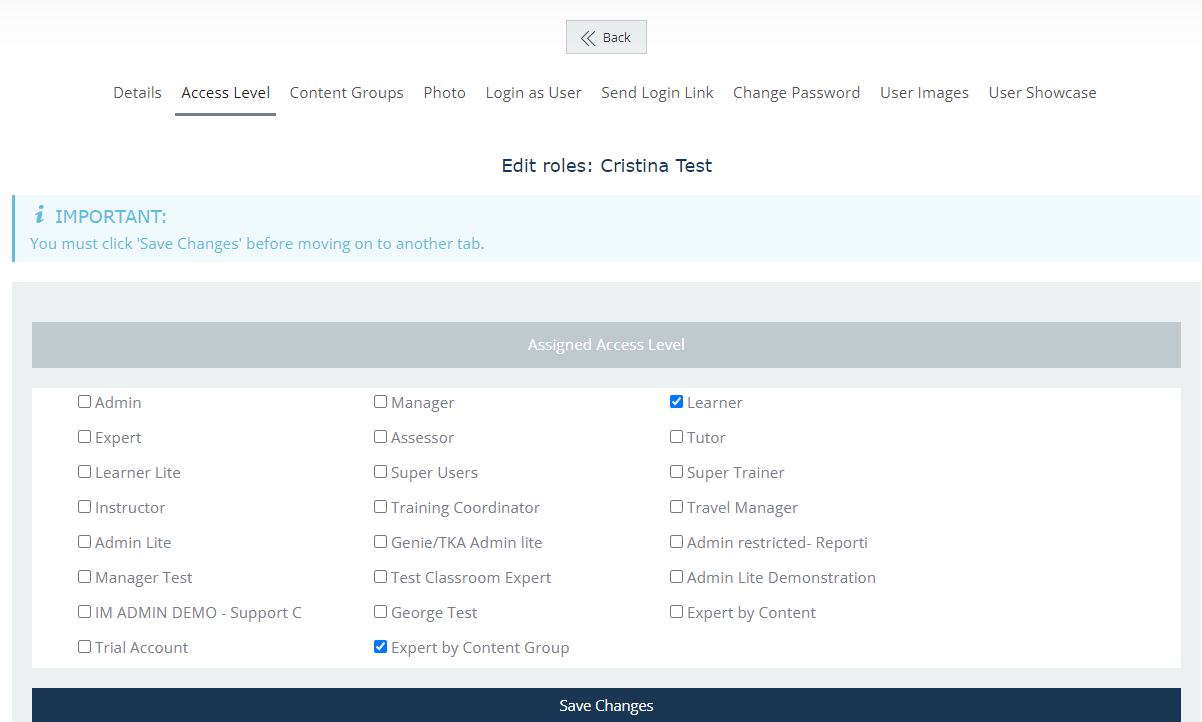
In my example, “Cristina Test” user will be my “Expert by Content” user.
You can allocate this in the learner section by editing the access level of that user and allocating the Expert by content group access accordingly.
This account will be visible in the Experts section only for the users with access to the Growth Engineering SA content group.
Note: it’s not necessary for the user to have access to the content group for the visibility of content.
End-User Visibility
The “Expert by Content” account will be now available in the Experts area for those users with access to the “Expert by Content” content group (i.e. Growth Engineering SA)
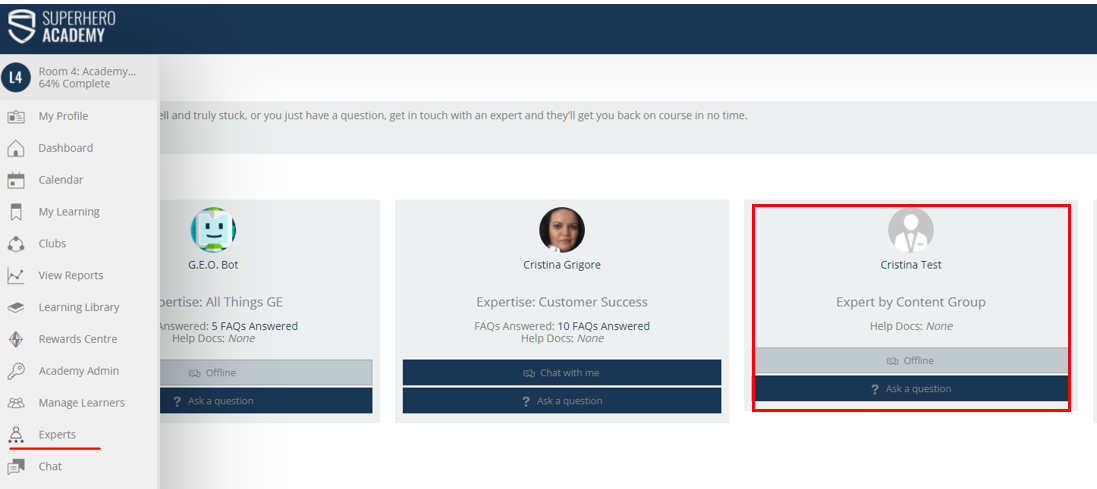
Ask Questions to “Experts by Content”
Learners can search for help by sending questions to LMS Experts and Experts by Content, using the Experts functionality on the dashboard sidebar.
To ask questions to the “Expert by Content”, the learner will click on the “Ask a Question” button, will type the question followed by the send button.
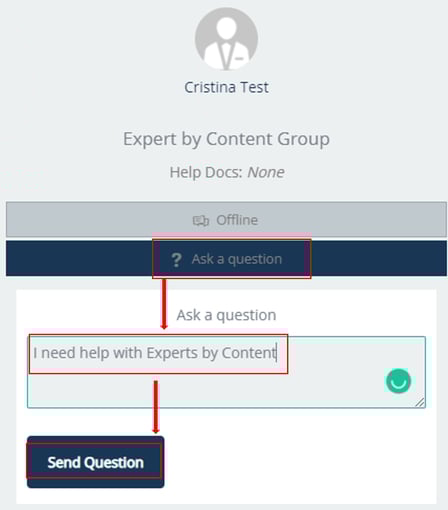
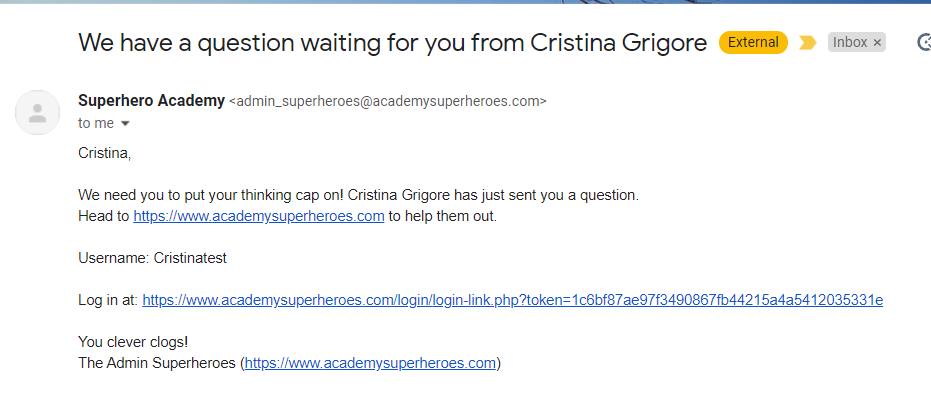
The “Expert by Content” will receive an email as a notification to say that a new question is waiting to be answered in the “My Things To Do” section.
The email message, by standard, is like the one in the image below, but as an Admin you can change the email template from the Admin Dashboard>Settings>Email Templates.
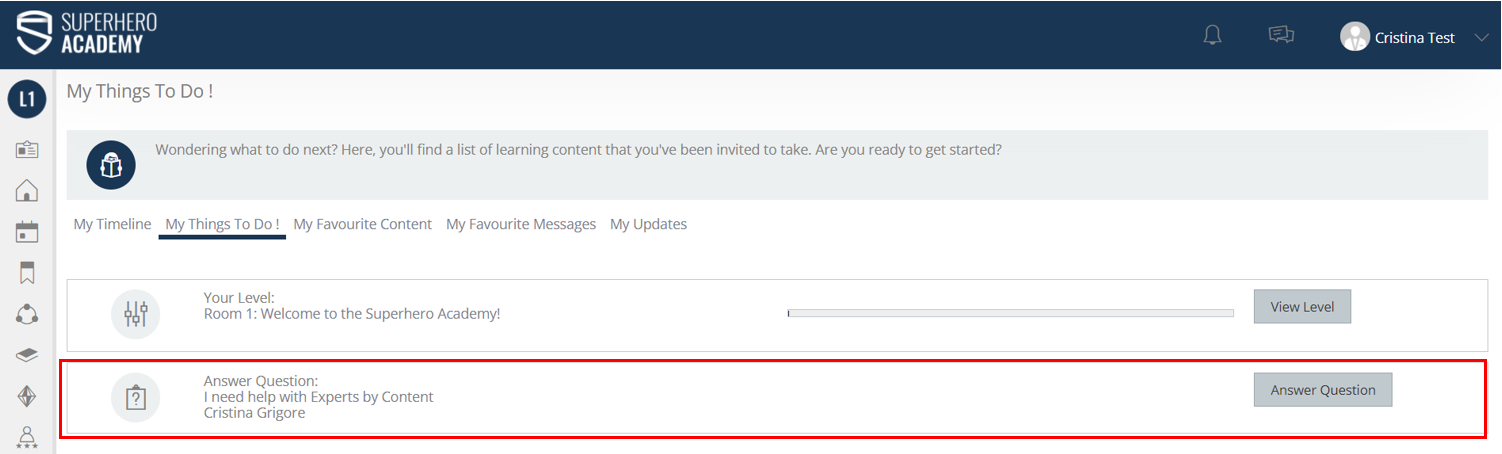
Clicking on the link provided on the email, the “Expert by Content” will be logged into the account. The question from the user is in the MTTD section from where the Expert by Content is able to answer.
Note:
Please refer to the “How to" Use Experts as a Learner document for finding the available options experts have in replying to user questions.
The “Expert by Content” is not able to add questions to the FAQ section.

Chat with “Experts by Content”
Learner sending Chat messages to “Experts by Content”
Learners are able to send chat messages to Experts and “Expert by Content”. To do so, the user will go to the Chat area and click on the Experts tab, then choose the Expert or Expert by Content he/she wants to chat to.
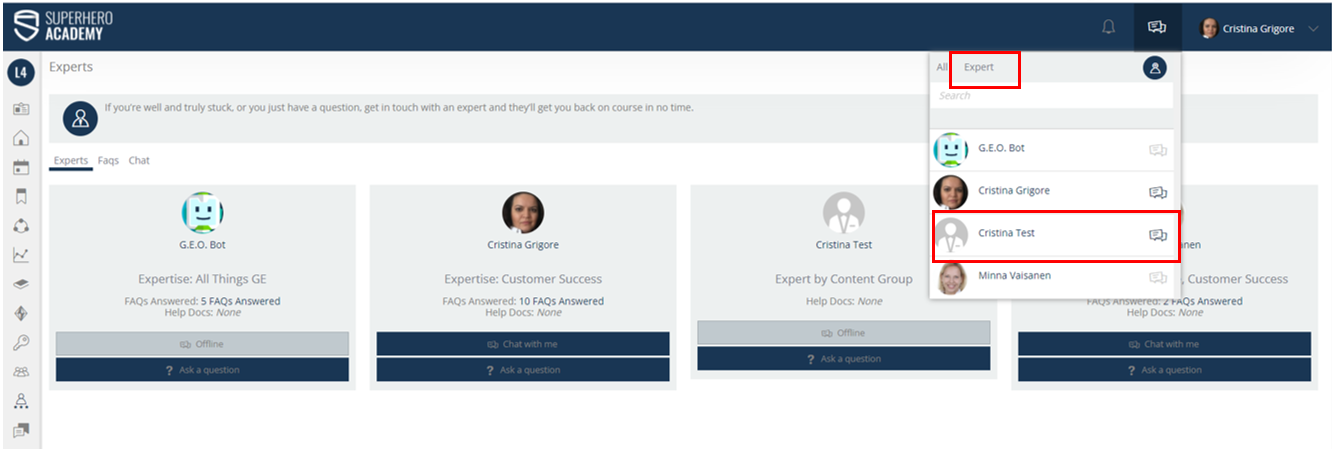
This is how the chatbox looks like (Image1). The user must type the message and press Enter on the keypad to send the message (Image 2).
1.
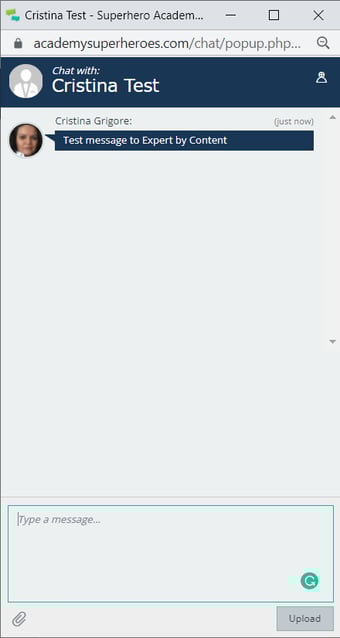
2.
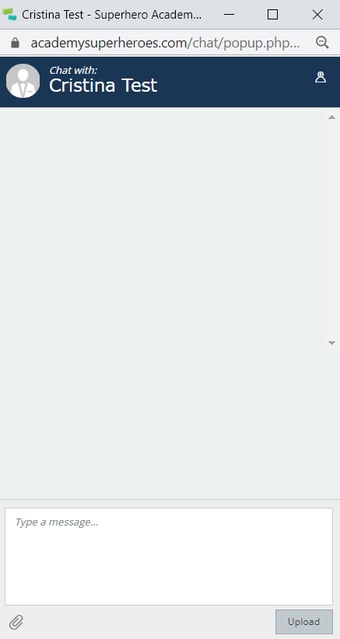
“Experts by Content” chat reply to user
The “Expert by Content” will see a notification on the LMS, under the chat icon.
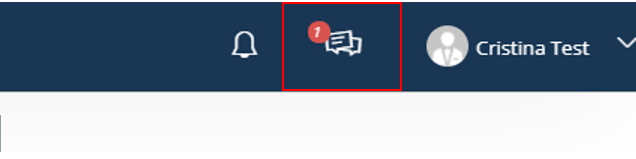
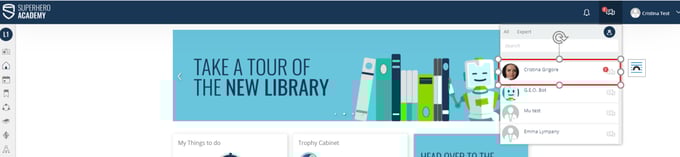
Note: Chat functionality can be also accessed from the sidebar menu on the dashboard.
The Expert by Content will reply by entering a message in the chat box.
The Learner will see the reply in the Chat the same way as the expert did.
Chat functionality is useful as the users can go back and forth and have the conversation history available in the chat box.