
Battles are a wonderful way to reinforce learning by creating a bank of questions and letting the system pick questions from this pool.
Battles can be categorized and activated when you like!
Here is how you can create battles in Genie:
Log-in to the Genie > Content > Battles
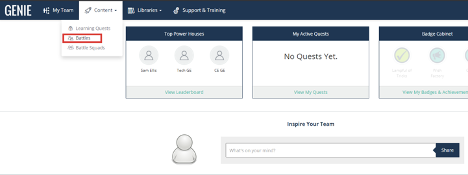
2. Click to create a new battle
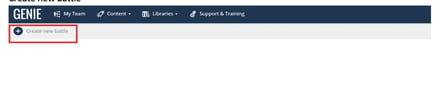
3. Complete the form builder with title, description, and assets (Can be done later)
4. Launch the builder which brings you to this screen
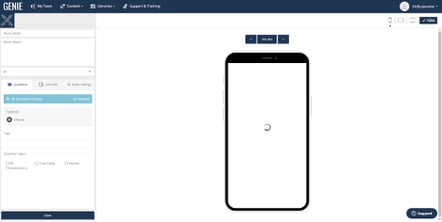
5. Choose the question folder(s) that you would like to pull in for the battle
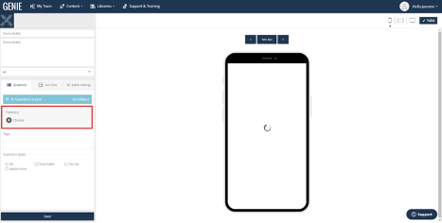
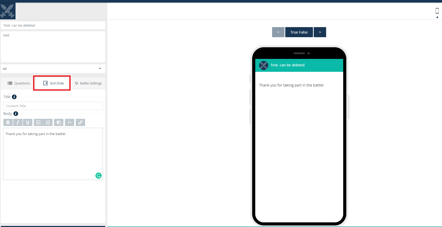
6. Design the Exit Slide:
This is where you can design a finishing message for the battle, in the highlighted tab below
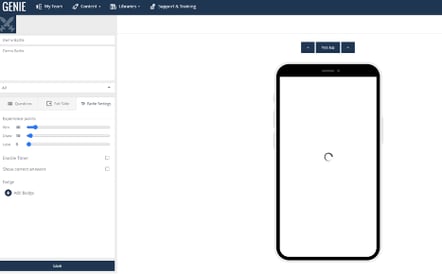
7. Set the Battle settings to include XP for each status of the battle, times, and if you want to show the correct answers.
8. Before you publish your quest to the app, you need to make sure you have the correct visibility settings. Head to the LMS Admin Panel > Genie > Battles and search for the title of your newly created battle (these should sync across automatically from the Genie tool)
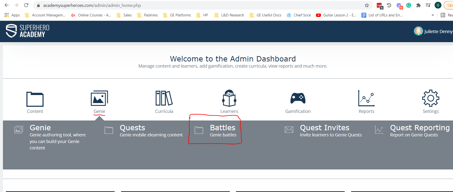
Here you can edit the Category and Content Groups of your battle so that you can ensure the correct users are seeing that battle in the expected Library Folder. (do this before publishing - if you publish without managing these elements, the battle will be visible to all users in the app)
9. Once complete, click on publish to publish the battle.
You are all set- you can now test this out on the App by clicking on the battle icon and choosing
That’s it - Battle ready!