
Battles are a wonderful way to reinforce learning by creating a bank of questions and letting the system pick questions from this pool. Battle Squads is taking the power of the battles to another level with time-based team activities. The Squads will be battling for Territory throughout the duration with one team showing victorious at the end!
Setting up Battle Squads is easy in Genie - however, before setting up the actual Squad battle it is worth considering the following:
Question Bank - it is easier to create the questions for the battles through the Question bank and simply upload a folder into the Battle. Read more through the Question bank article.
Content groups - you will allocate the Squads through Content groups so have a think on who will be in which team!
Here is how you can create Battle Squad in Genie:
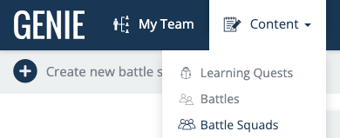
Log in to the Genie > Content > Battles Squads
Click to create a new battle Squad
3. Complete the form builder with title, description, and assets (This can also be done later)
4. Launch the builder which brings you to this screen
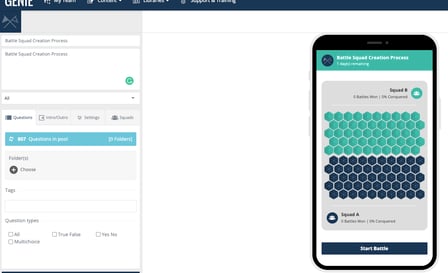
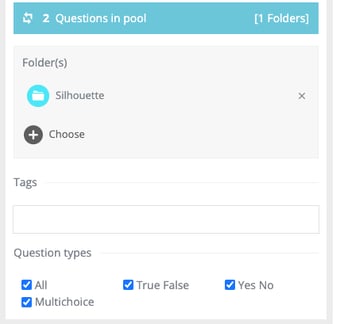
5. Choose the question folder(s) that you would like to pull in for the battle; once you save the folder you can see how many questions there are in the folder. You can also choose which questions types you would like to include in the Battle Squad.
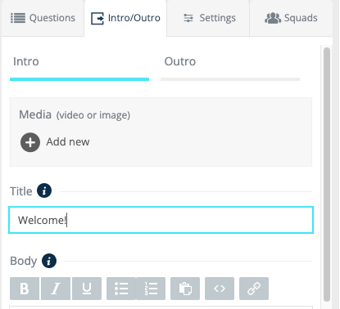
6. Design the Intro and Outro Slides:
This is where you can design a finishing message for the battle, in the highlighted tab below
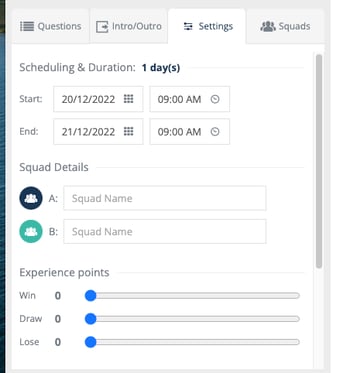
7. Select the settings tab to schedule the battle squad duration, and the squad names and determine the XP amount for win, draw and loss.
You can also change the colours for the Squads by clicking on the squad icons (this will change the territory map!)
8. Finally, head to the Squads section to add in the teams. You do this by choosing content groups:
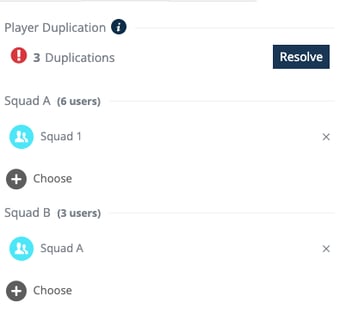
The system will determine if you have players who appear in both Squads. Before being able to publish, you need to resolve this. You can either let the system resolve this by selecting all and auto-assign the players or resolve this manually by choosing Squad for the person.
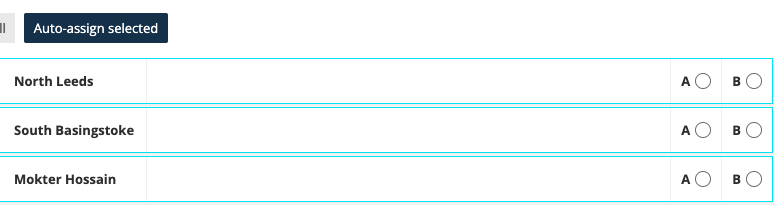
We would recommend aiming for balanced numbers between the squads!)
9. Once complete, click on publish to publish the battle Squad.
You are all set- you can now test this out on the App!
That’s it - Ready for the Battles to commence!