
The downloading report is a quick process once you have run the new report.
You can also download reports that were run previously from the ‘completed’ page.
Downloading from the new report page
Once you have created the report and clicked on “Run Report”, you will land on the report results page.
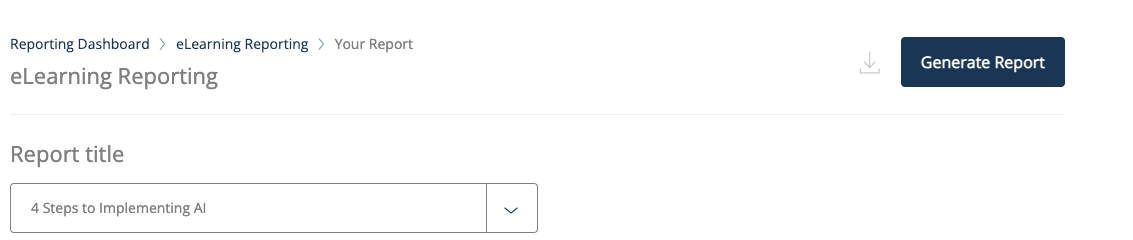
On this page, you can click on “Generate report” which starts creating the download file.
This message confirms that the report has been started to download as well as send an email to your email address.
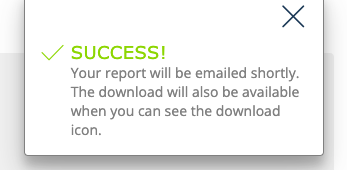
As noted, the report is ready to download when you can see the download icon visible. By clicking on this, the report will download as CSV.

Downloading from the completed report page
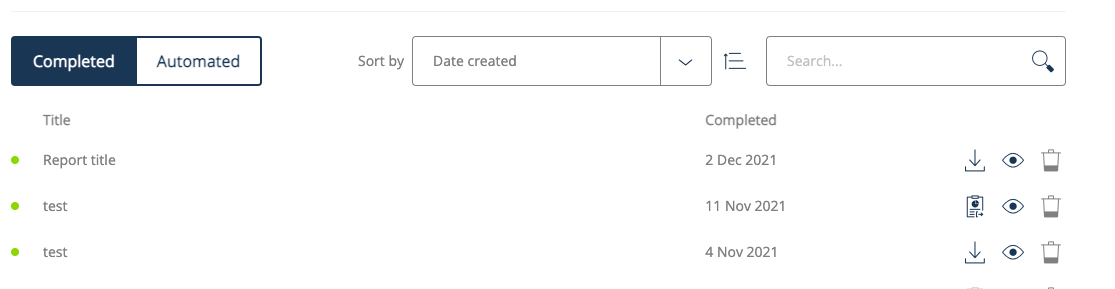
You can also download the reports from the completed page (landing page of the reports) for reports that were already run in the past.
The reports that are ready to download show the download icon visibily
If the download icon is not shown, click on the icon to re-generate the report again, and refresh the page for the download icon to appear (note: if this is a large report, it may take few minutes to re-created the report link).
Happy downloading!