
You can assign content to the Content group in two main ways.
You can bulk assign content in the Group manager and pull in content by each type
You can assign content when creating individual pieces of content by choosing the content group through the radio buttons
Assigning content through the Group Manager
Open the Group manager through the Curricula module - Group manager.
Locate the content group that you want to edit and click to edit.
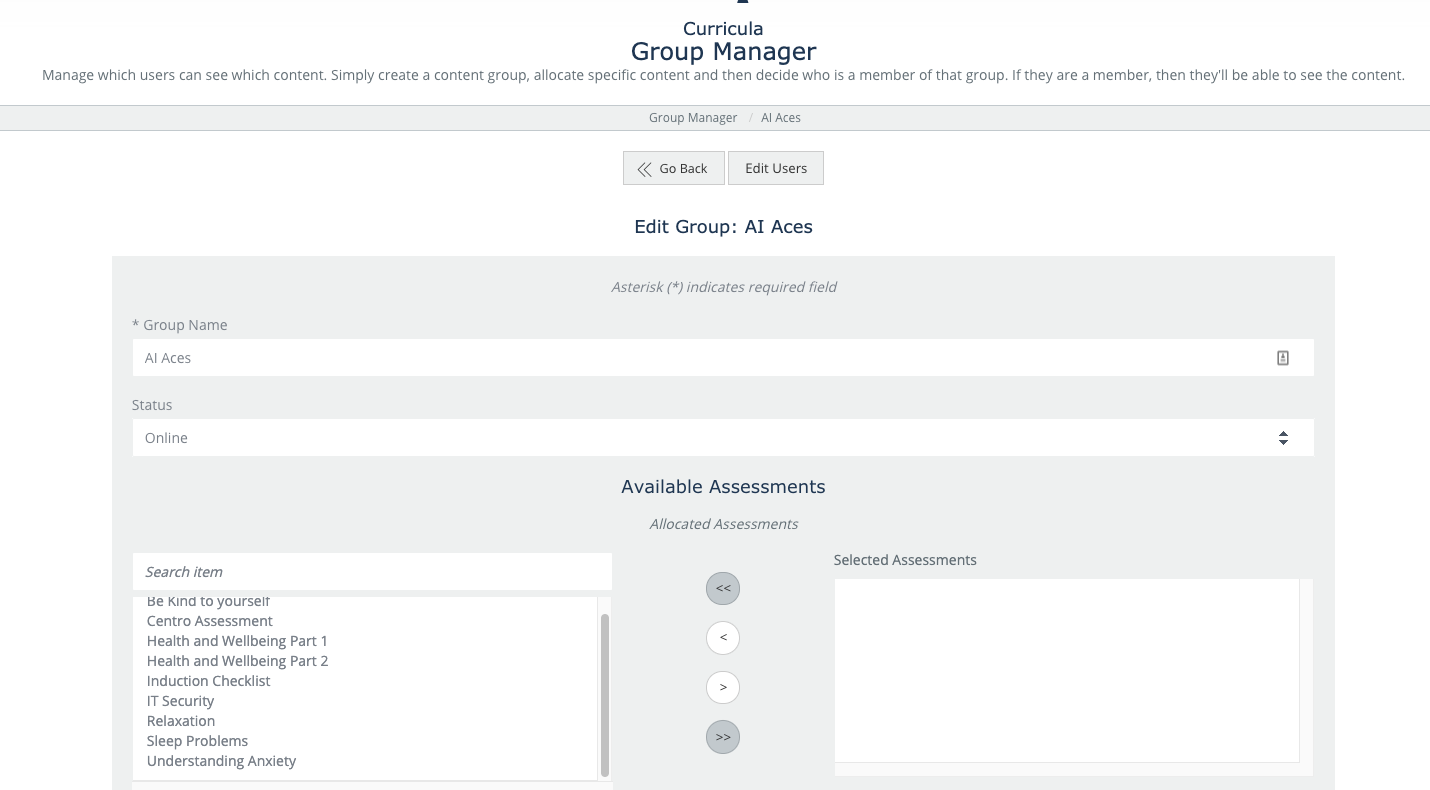
You can now see the items that have been allocated to this content group on the right-hand side by type of content. You can add more or remove content by assigning or unassigning with the arrows.
Assigning content through Individual pieces of content
As you create or edit pieces of content, you can edit and assign content group rights simply in that piece of content.
Look for the content group radio buttons under the piece of content. Selecting a content group will allocate the learners assigned to this content now visibility to this content!
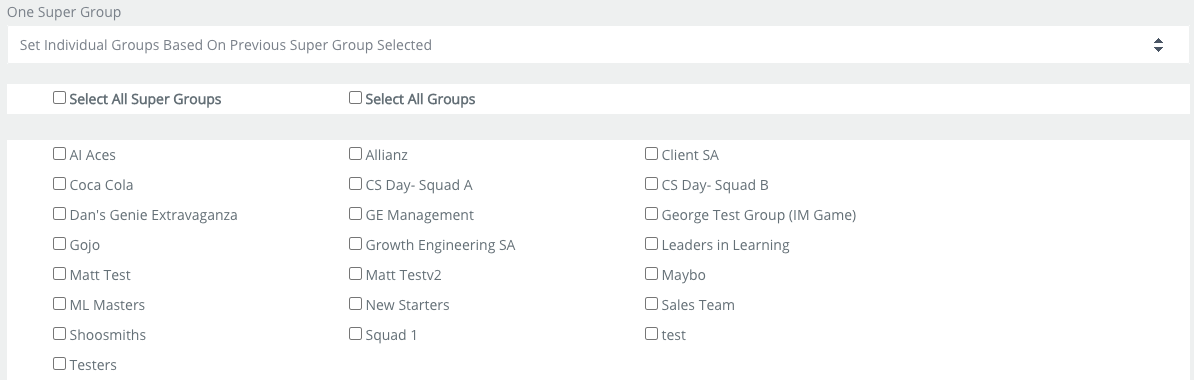
Note that we can also use the supergroup assignment under the individual pieces of content. Simply click on All Supergroup or utilize the drop-down ‘One Supergroup’ functionality to select all groups allocated to that supergroup.