What are Assessors on LMS?
Assessor is a non-editable access level that can be added to different learner accounts on the platform.
Assessors on the LMS are responsible for evaluating and marking tests/reviews that have text or file-upload answers.
Here is the link to the Access Level article:
https://growthengineering.zendesk.com/hc/en-gb/articles/4403386679697-Access-Levels
Assessors functionality for Tests
Assessors marking is needed only if any of the test questions require qualitative answers.
Admin set-up
When creating a test, there is the option to select “Mark by Assessors” and on this list will be visible all assessors with “Assessor” access level on the platform.
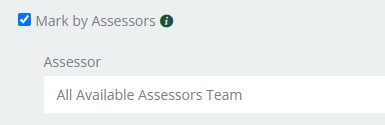
There are three options to choose from:
All Available Assessors Team > All the users with the assessor access level from a team will be able to perform marking.
All Available Assessors Global> All users with accessor access level on the platform will be able to perform marking.
Individual Assessors > Only the nominated assessor will be able to perform marking .
Process for marking
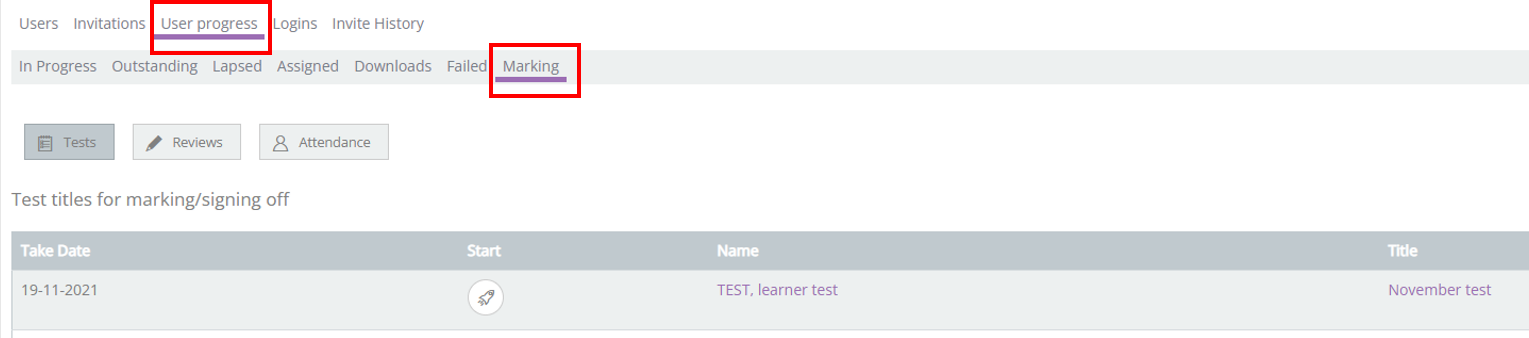
When learners finish a test they will “Submit for marking” and that will trigger a task in the assessors MTTD section.

Marking a test is not a complicated task. To give feedback while marking, the assessors have the option to add comments to each question and upload a file (file types allowed: pdf, doc, docx, ppt, pptx, xls, xlsx, jpeg with a max size of 500MB).
During marking, the assessor is able to use the “Soft Save” functionality; this will save any marking done giving the assessor the option to continue later.
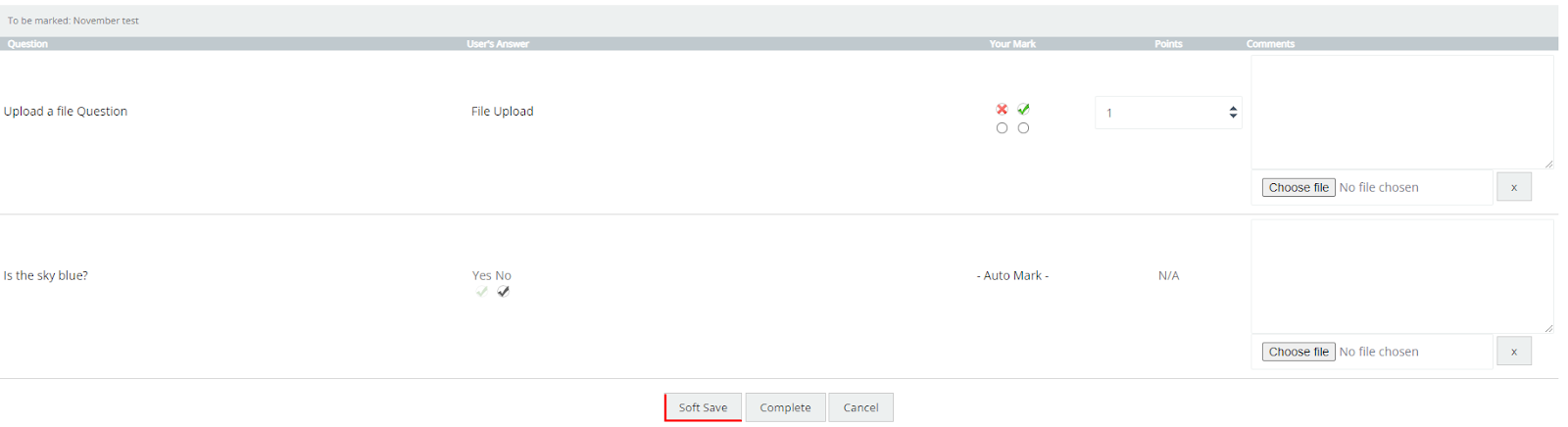
When the assessor has completed the marking, the learner will be notified with an email such as the one in the images below.


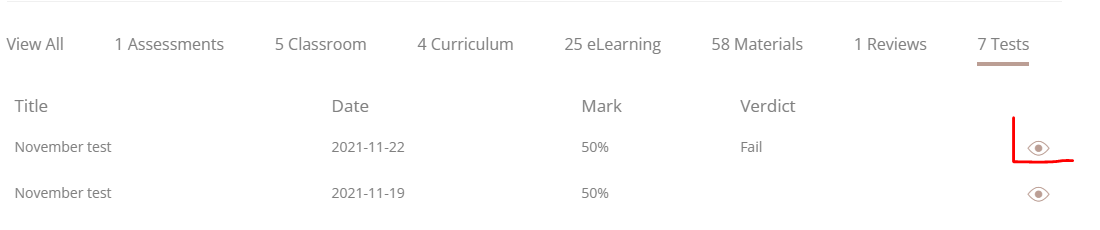
The learner will see the test results in the My learning >Timeline section under the Tests tab.
Learners can view the assessor’s comments and file suggestions by clicking on the eye icon. (image below)
Assessors on Reviews
Managers can carry out regular reviews on their team members and assessors marking is needed for the scoreable reviews.
Admin set-up on Reviews
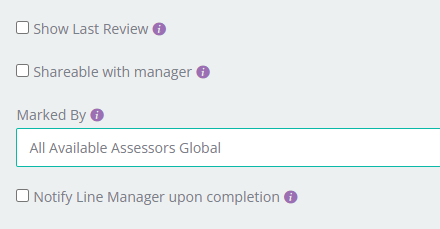
There are three options to choose from (similar to the tests):
All Available Assessors Team > All the users with the assessor access level from a team will be able to perform marking.
All Available Assessors Global > All users with accessor access level on the platform will be able to perform marking.
Individual Assessors > Only the nominated assessor will be able to perform marking .
Marking process:
Once the learner will complete the review, the assessor will have a “Mark Review” task in the MTTD section.

The assessor is able to view learners’ answers, any uploaded files and is able to add comments to each review question before completing the marking.
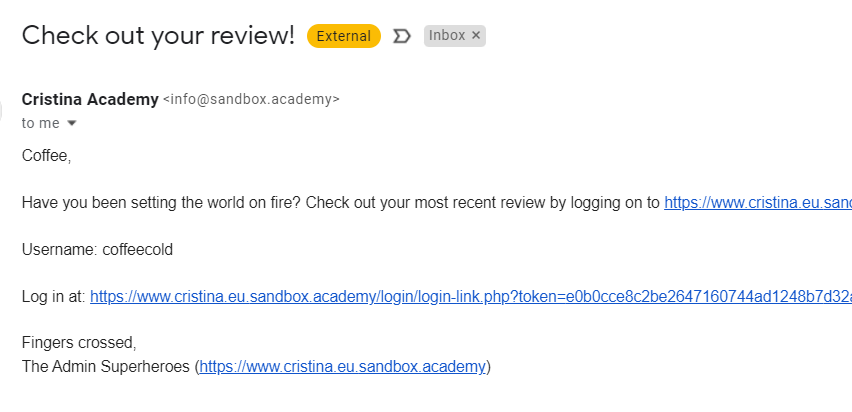
Once the marking is complete, the learner will receive a notification via email.

Top tip:
Assessors who have manager levels access can also access marking through Manager Learners Marking can be performed from the User Progress section, where a longer list of markings can be seen.