
Here is a guide on “How To” use Expert functionality.
Ask Questions to Experts
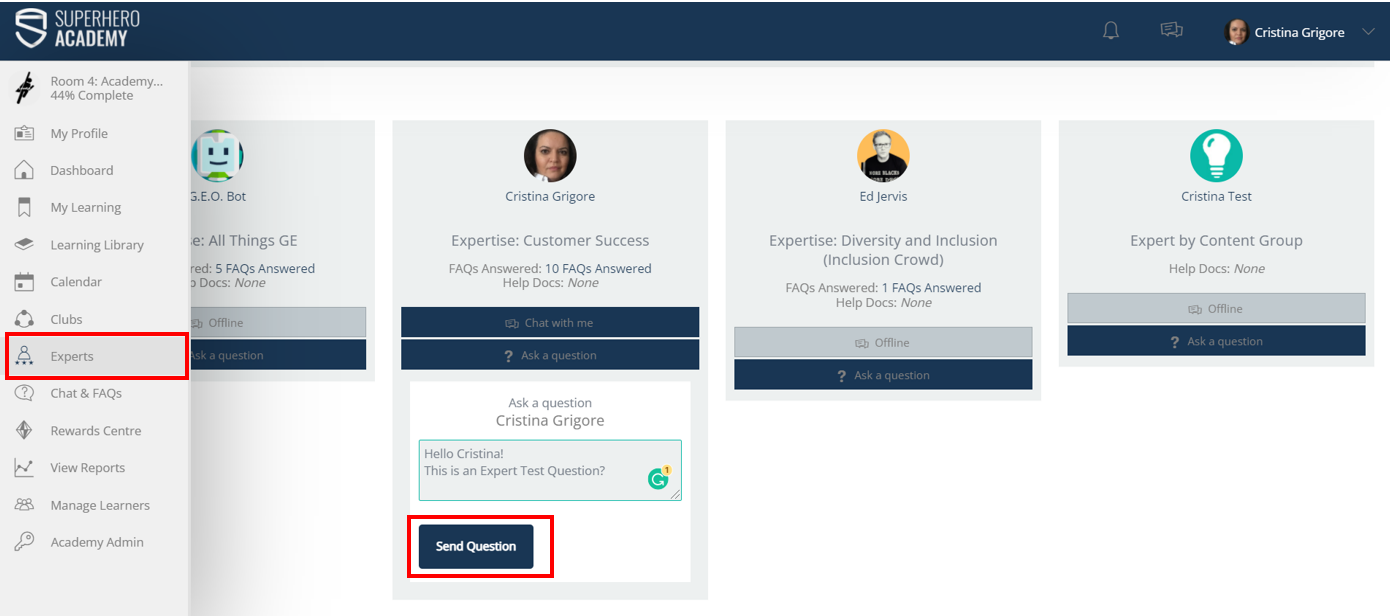
Learners can search for help by sending questions to LMS Experts, using the Experts functionality on the dashboard sidebar.
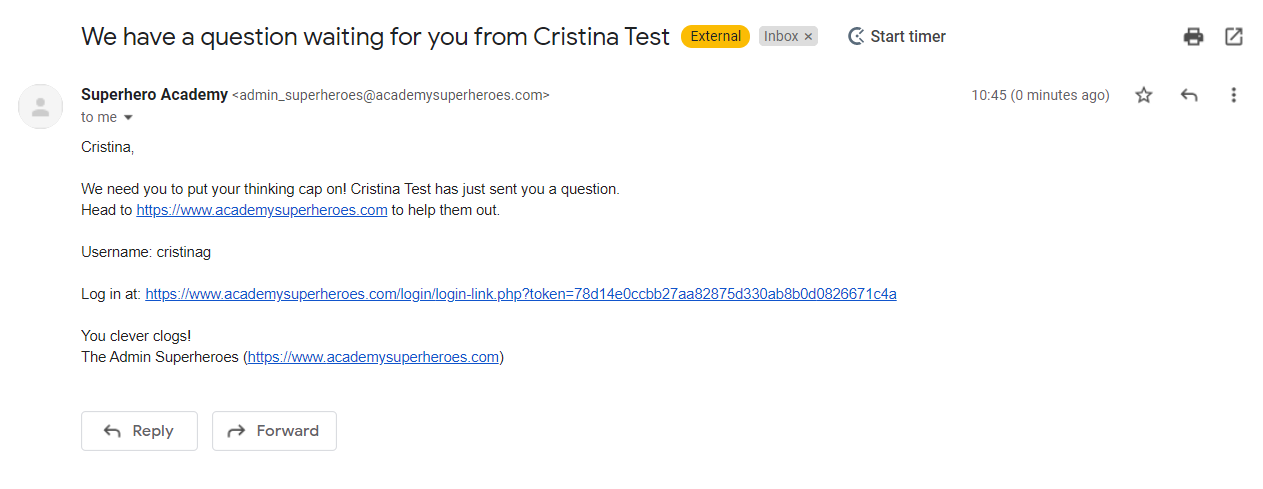
The Expert will receive an email as a notification to say that a new question is waiting to be answered in the “My Things To Do” section.
The email message, by standard, is like the one in the image below, but as an Admin you can change the email template from the Admin Dashboard>Settings>Email Templates.
Experts Reply/Answer
The Expert will find the learner's question in the ”My Things To Do” (MTTD) section and can answer by pressing the “Answer Question” button.

This opens up the next page, where the Experts can enter their answer to the learner question.
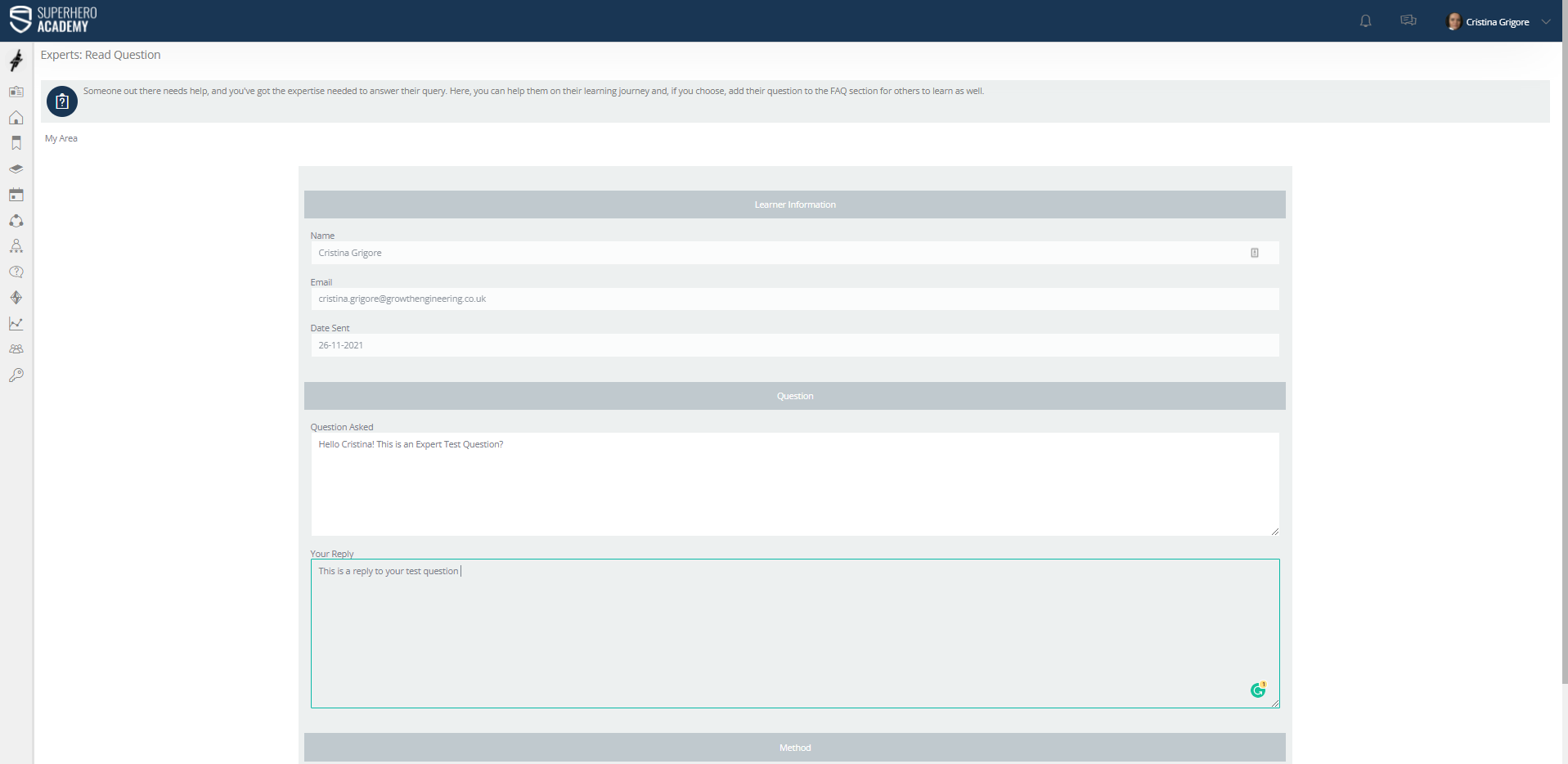

Notice:Here we have two options for replying to user:
-Clicking on the “Send” button will send an email to the Learner and also send them a notification in the LMS under the notification bell in the upper right corner.
-Selecting “Reply by email & add to FAQ’s” will send an email to the Learner, push a notification under the notification bell and in addition, the Expert can choose to add the answer to the FAQ section under the desired FAQ Category.
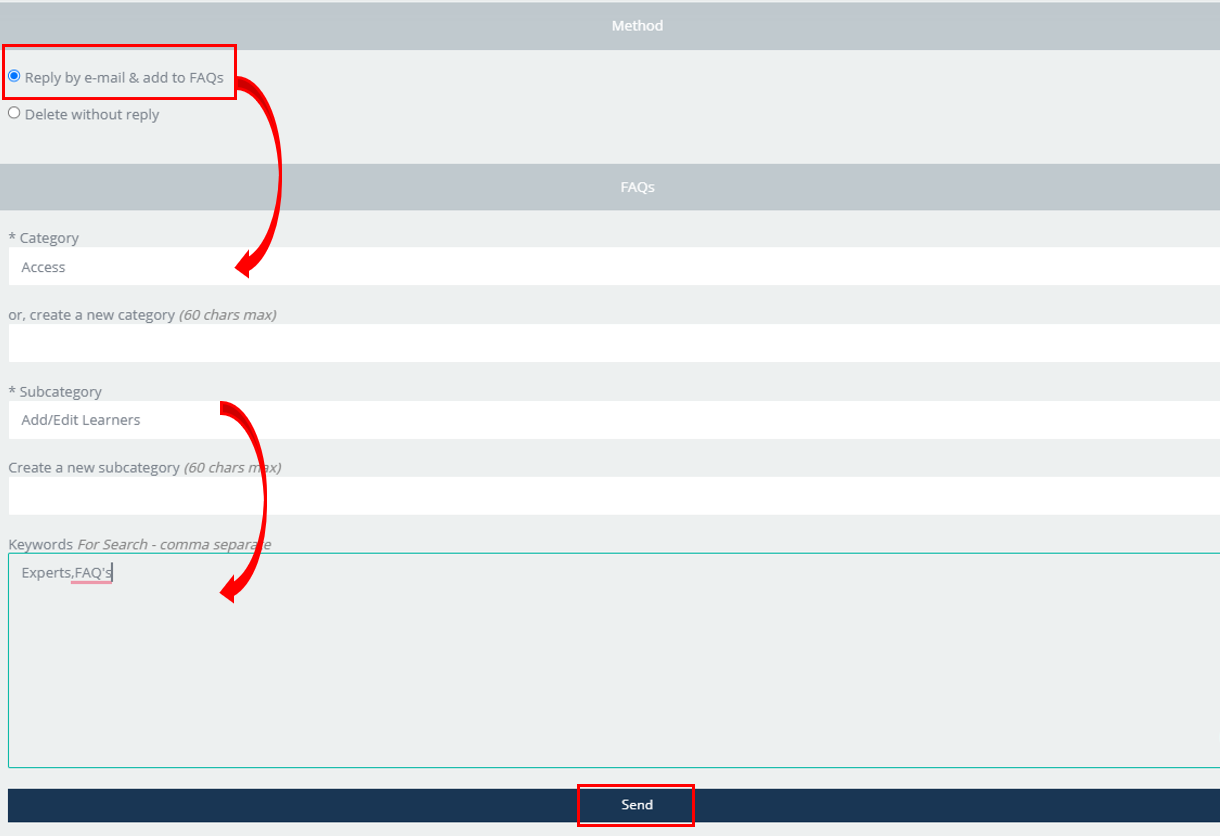
Note: Once Expert sends their reply in either way, the task from Expert’s MTTD will disappear.
Best practice tip:
Hence, we encourage there should be Categories and Subcategories created by the Admin so the Expert can use the pre-existing ones when adding to FAQ’s.
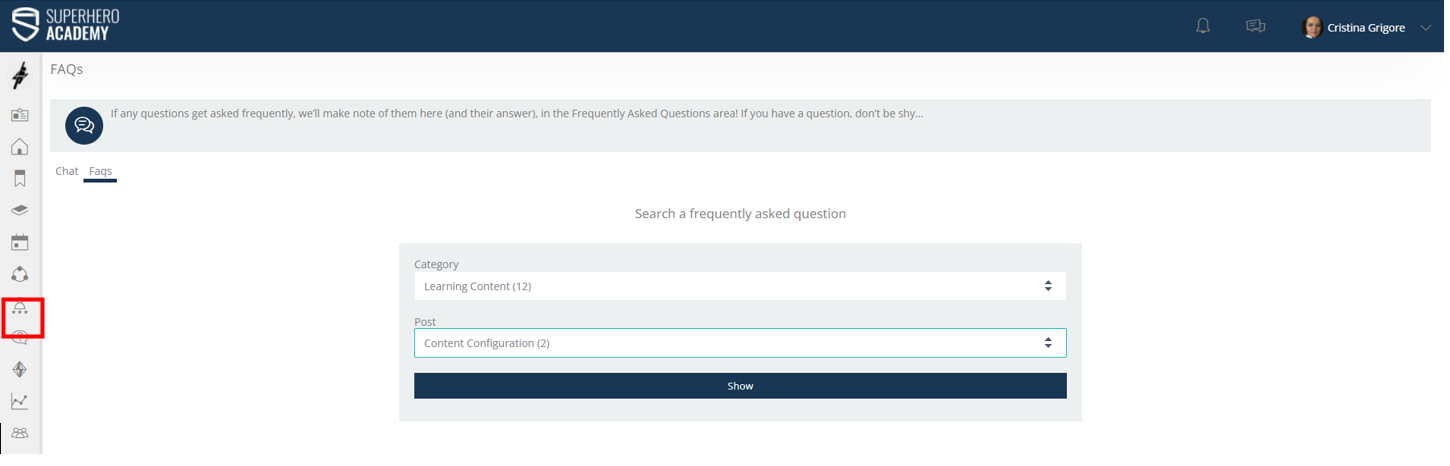
Learner Notification
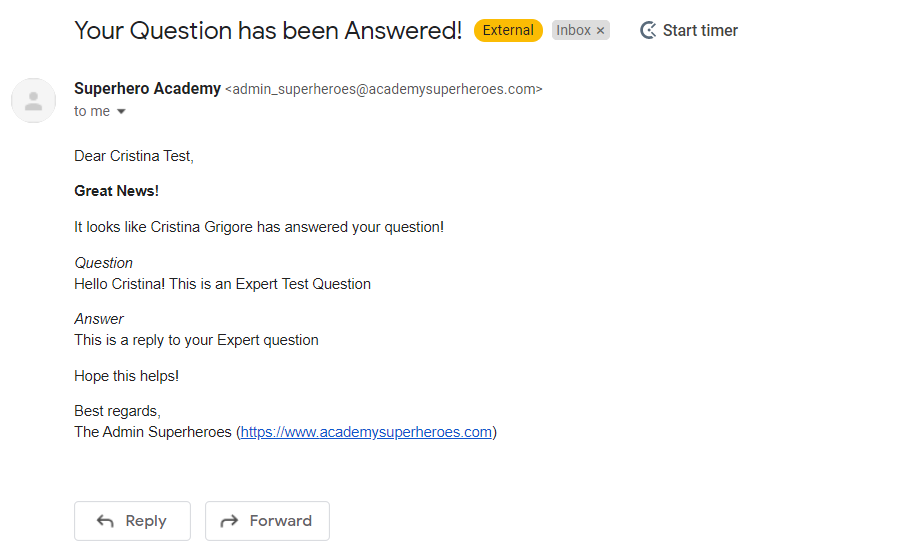
When the Expert has sent the reply to the learner, the learner will receive the answer via email as well as in the LMS through the notification under the Notification Bell
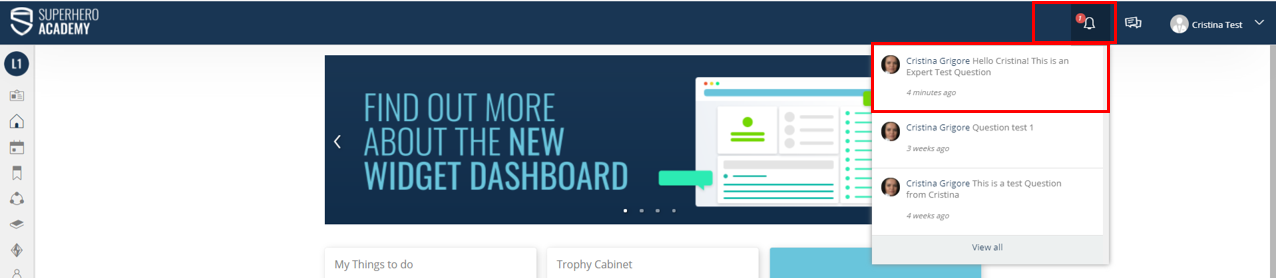
Clicking on the notification, the learner will be directed to the FAQ’s area of the platform. There, the learner can search for the answer.