
The Manager Access level allows users the ability to pull reports and send invites, without giving them access to the Admin area. When a learner is given the manager access level they will gain access to two new options on the left-hand menu. View Reports, and Manage Learners.
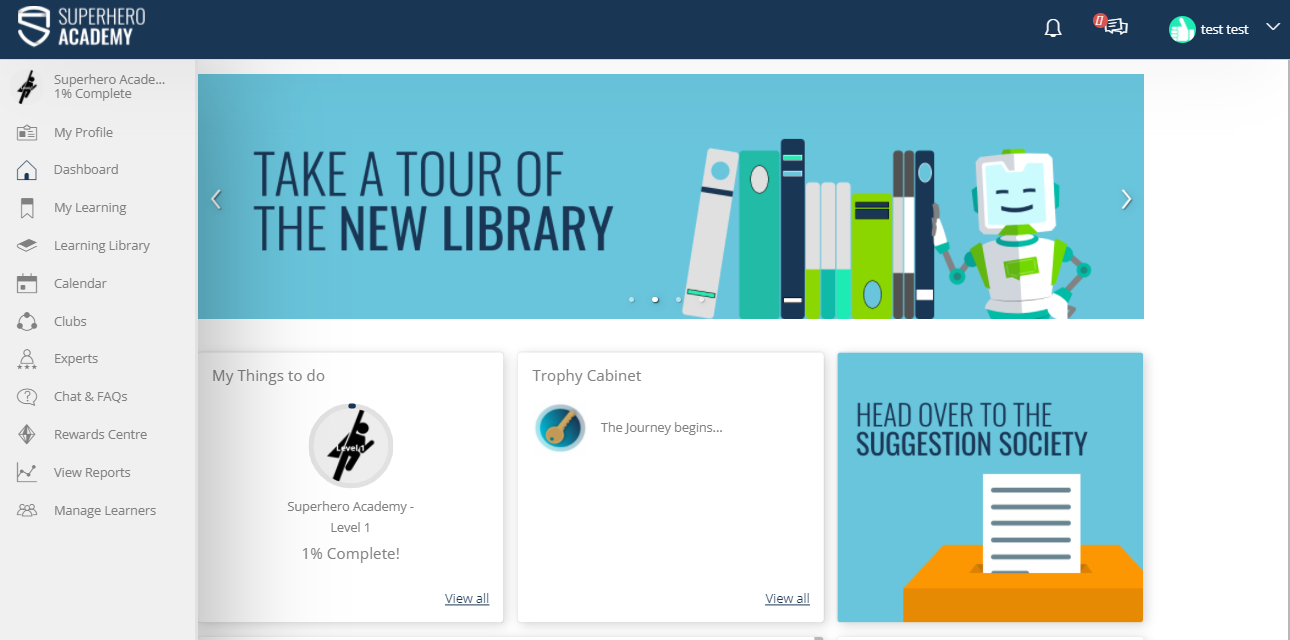
By default, the manager will gain the ability to run reports and send invites to the people who sit in the same team as they do on the system, though this can be expanded by the Team Access tab on the learners profile in the Admin area.
View Reports
The manager will now have access to the full front-end reporting suite, which includes these report types.
Assessments
Tests
eLearning/Video
Quests
Battles
Materials
Classroom
Login Times
Curriculum
Reviews
Levels
The reports can be set to the last day, week month year, or a custom date range. They can also be automated, which is fantastic for monthly completion reports. The reports will be displayed first on the system, which gives an overview, as well as the ability to open up the completion in greater detail, but can also be exported to Excel or CSV formats which can allow for more in-depth data analysis.
Manage Learners
The first page managers will land on in the Manage Learners section is the user's page. From here a manager can invite their learners to complete content, send them praise badges, and look at a summary report of the learner's completion in the system.
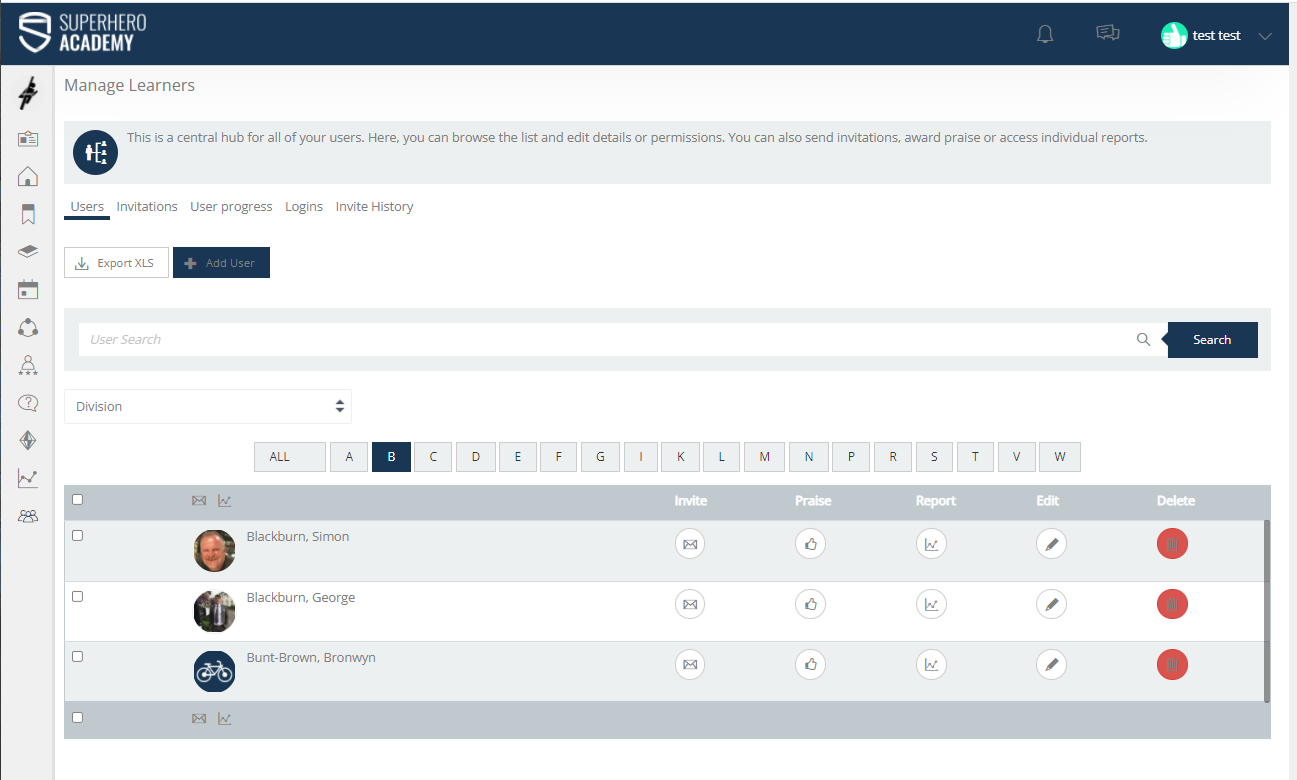
When on this page the managers can look at users individually or in great detail in order to make sure the team a manager is managing is progressing without issue. The other tabs on the Manage Learners section are:
Invitations: Invitations will allow the manager to send the learners in their teams content that they think could be valuable for that learner.
User progress: User progress shows an overview of each learner in their teams' completions, broken down by content type.
Logins: Logins' are a quick way for managers to see who in their teams has been logging in recently.
Invite history: Invite history allows managers to check which pieces of content they have invited learners too, to make sure that everyone got the pieces that will help them most.
Managers can also send their learners praise badges. These need to be created by admins but can be assigned to different content groups depending on which teams need them. Praise badges are a great way to show learners that their managers are paying attention to their learning and bringing the real world onto the LMS. Traditionally they have been used to award additional XP for things such as teamwork or course completion.
A manager can send praise badges either by selecting the praise icon next to the learner's name in the image above or through the invitations section. The praise button is perfect for sending a single learner a badge, but using the send invites section will allow a manager to send multiple learners a badge at the same time.
Top Tip: Praise badges are a great way for managers to reward their learners, but it is important that there are some guidelines. The badges and experience points can be used to redeem rewards and the experience points will help people climb the leaderboard. As a best practice, do design guidelines for your manager on awarding these praise badges!
Manager Team Access
As an admin, you have the ability to increase the number of teams a manager can see. This is done in the team access tab in the learner's profile. To access this go into the admin panel, the learner's section, and find the manager you want to increase the teams of. When you find them click edit and you will see these tabs.
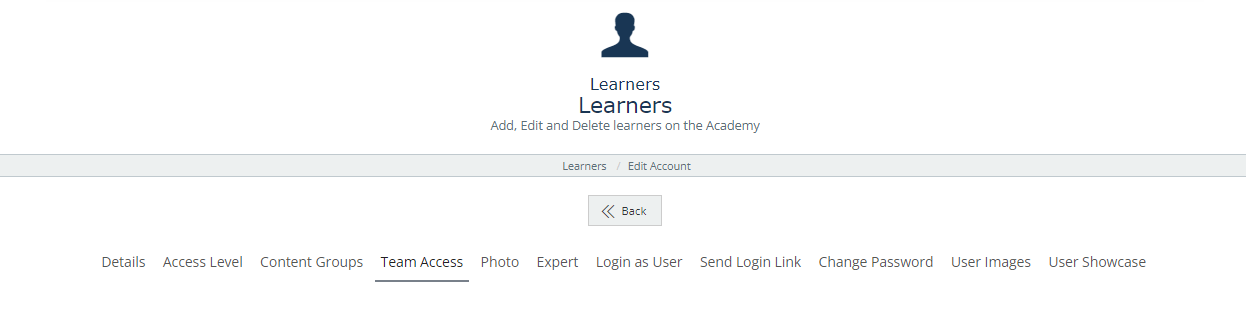
In this tab is a complete list of all of the Divisions, Regions, Branches, and Teams on the system. You can select individual teams, or you can select branches, regions, and even divisions. When you select an option above the team level it will automatically select all of the levels below it. For instance, If you select a region for a manager, the branches and teams within that region will automatically be selected, making the manager able to report on all teams that sit under that region.
With this information, your managers are now equipped in managing their learners as well as running reports on their learning progress. Simple!