
Scheduling Post
Scheduling post enables the admin to create social campaigns ahead of time by drip-feeding posts into the clubs as desired.
As admin, this helps you to manage your time as well as think ahead and post around big events and announcements. It could not be simpler!
How to schedule a post:
Navigate to the club's area and click on the club you want to schedule the post in.
Draft your message and click on the clock symbol, which opens up the post scheduler:
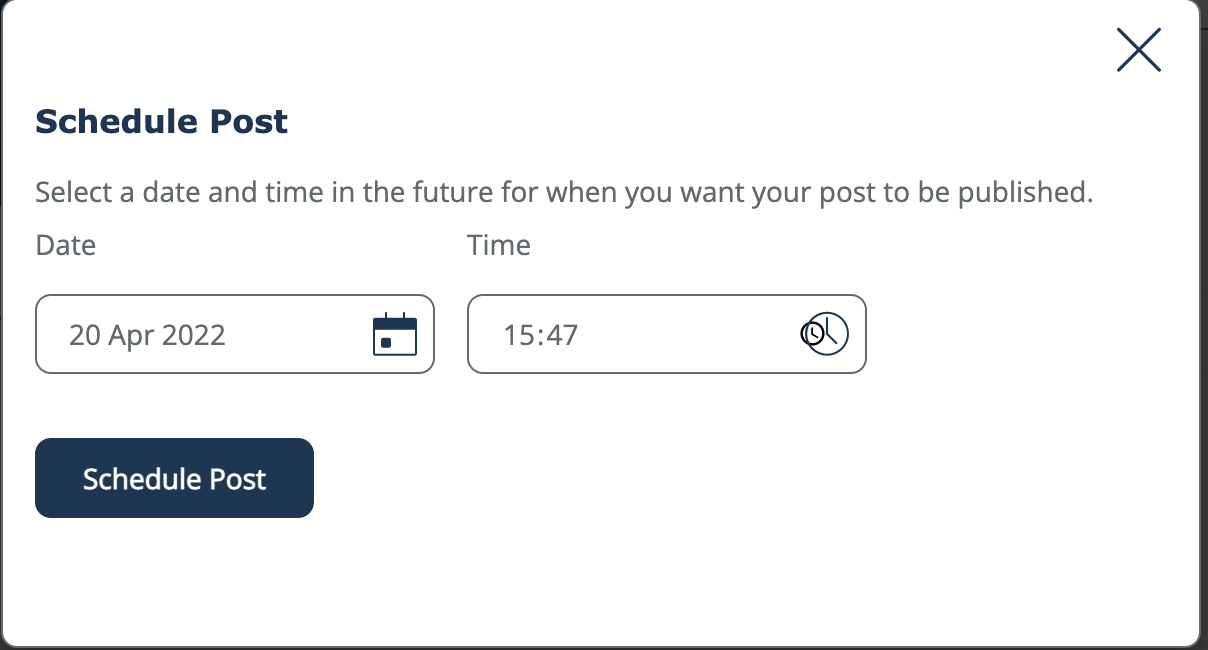
Select the date and time you want the post to be available and click on the schedule post button.
Voila!
Push notifications (App only)
Push notifications functionality is similar to all other social media channels notifications. The purpose is to catch the learner's attention and get them to pick up their phone to check out the notification, thus clicking and entering your learning App!
Hence, our recommendation is to use push notifications sparingly as they are a powerful pull for learners' attention.
Similarly to post scheduling, you can schedule post notification to fit your engagement strategy. Instead of the singular club, you would schedule the post notification based on a user group or teams. You can even notify a singular person!
How to create &schedule a push notification:
Click in the admin section of your LMS and navigate to the learner's section under bespoke notifications.
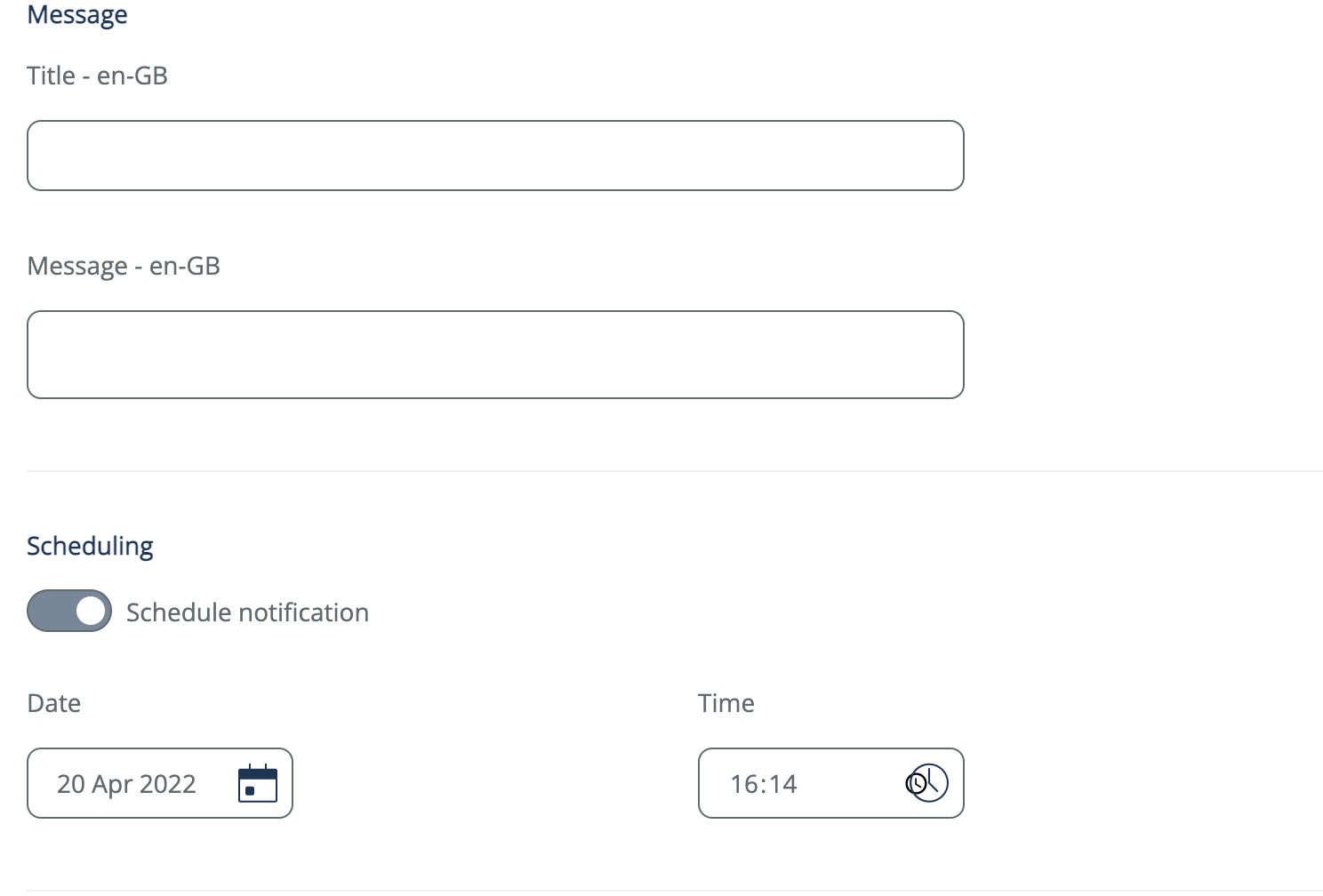
Click on the new notification and choose your language to write the notification in.
You can post the notification straight away or click on the scheduling section to send the push notification at desired time.
Finally, click on the Recipients section to choose the groups or teams whom to send the notifcation.
Voila!