Upload the SCORM Content to the LMS
-
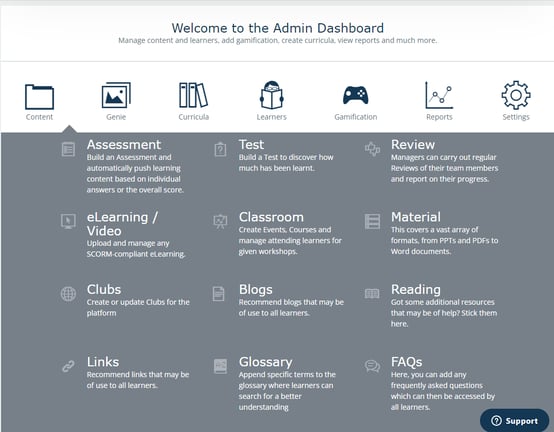
Head to the Admin Dashboard of the LMS; Navigate to the ‘Content’ section and then ‘eLearning’.
2. Choose the section to which you want to upload the Scorm content and click "New Content". Fill out the juicy details like title, category, keywords, description, bookmarking, and experience points. Click ‘Create New Content’ and let the magic happen.
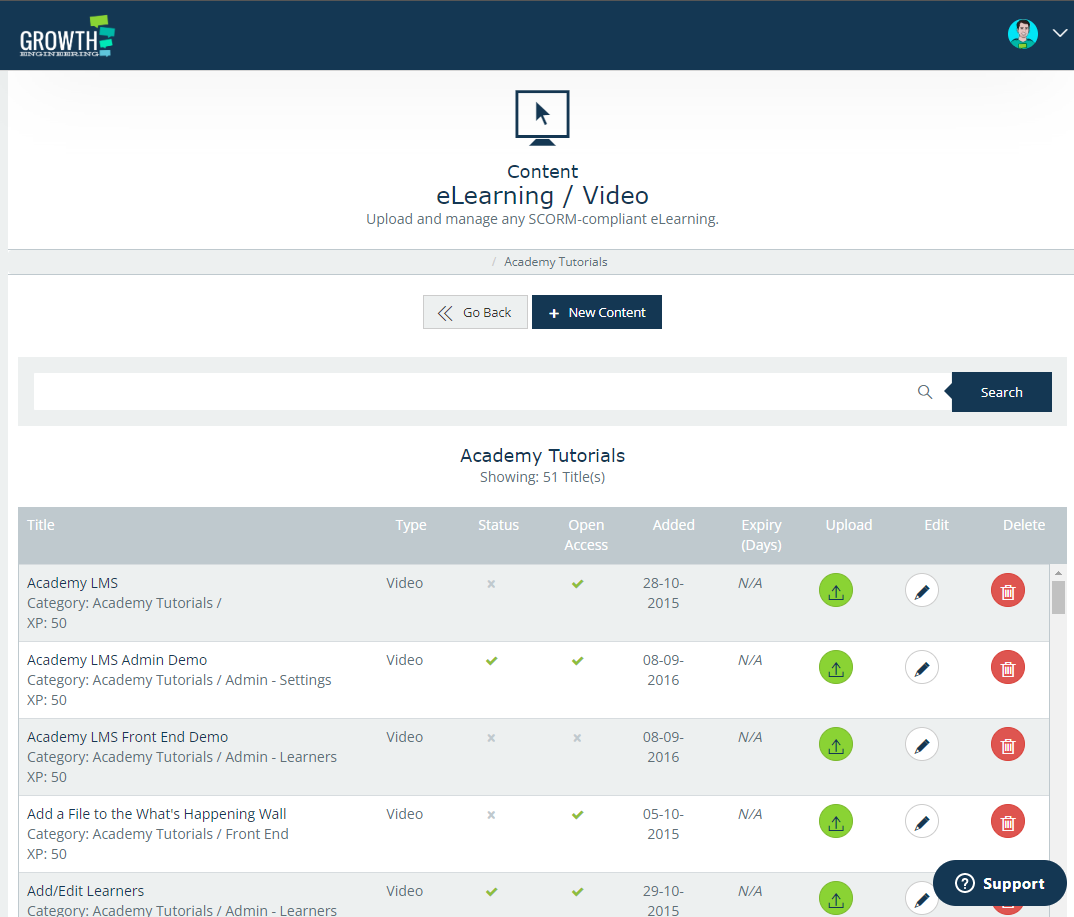
3. Then find that newly created content wrapper, click the "Upload" icon and select the Scorm package file. Do a little jig, you’ve just uploaded some SCORM!
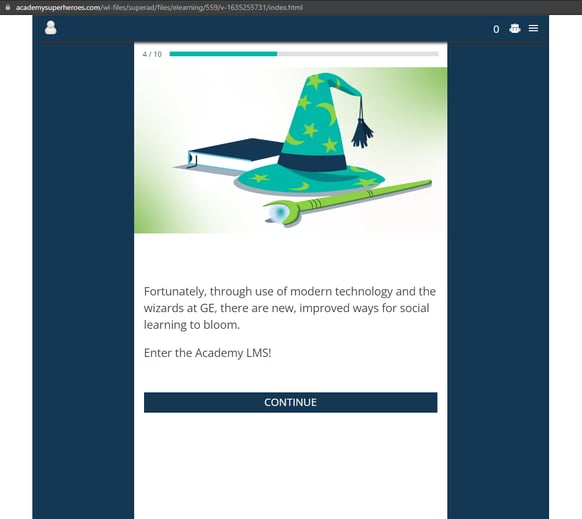
4. Navigate to the front end of the LMS. Check that the content has been uploaded and is ready to party. Copy the URL of the Scorm content. You’ll need this for the next part!
Create a Link Between LMS & App
-
Hop over to the Genie Content Authoring Tool.
-
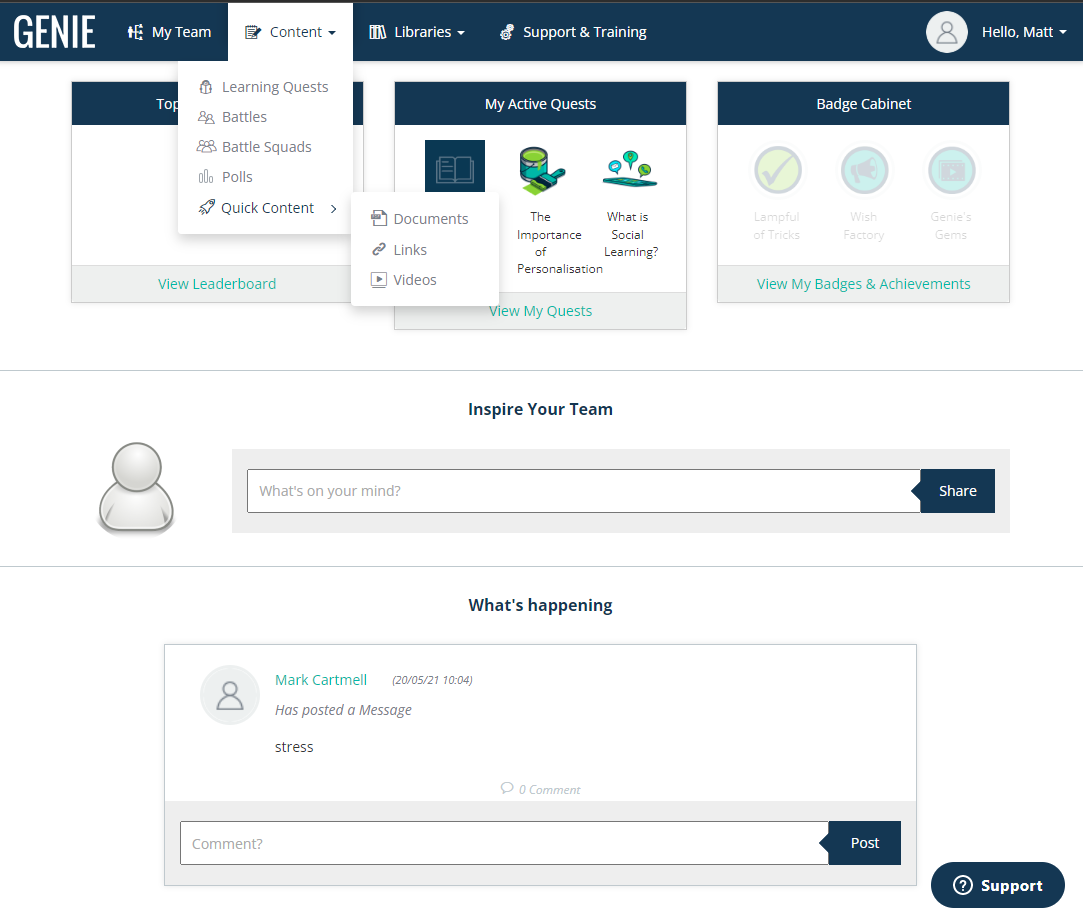
Navigate to ‘Quick Content’ and then ‘Quick Links’. On the Quick Links dashboard, select ‘Create New Quick Link.’
-
Add the following details in the wizard: -URL of the SCORM content -Link Title -Link Description-Link Thumbnail -Language-XP-Badge
-
Then press ‘Save’, and when you’re ready to have some fun, hit ‘Publish.’
Provisioning The Link
-
Head to the Admin Dashboard, navigate to the ‘Content’ section, and then the ‘Links’ folder; Find the Link you’ve just published and ‘Edit’ it.
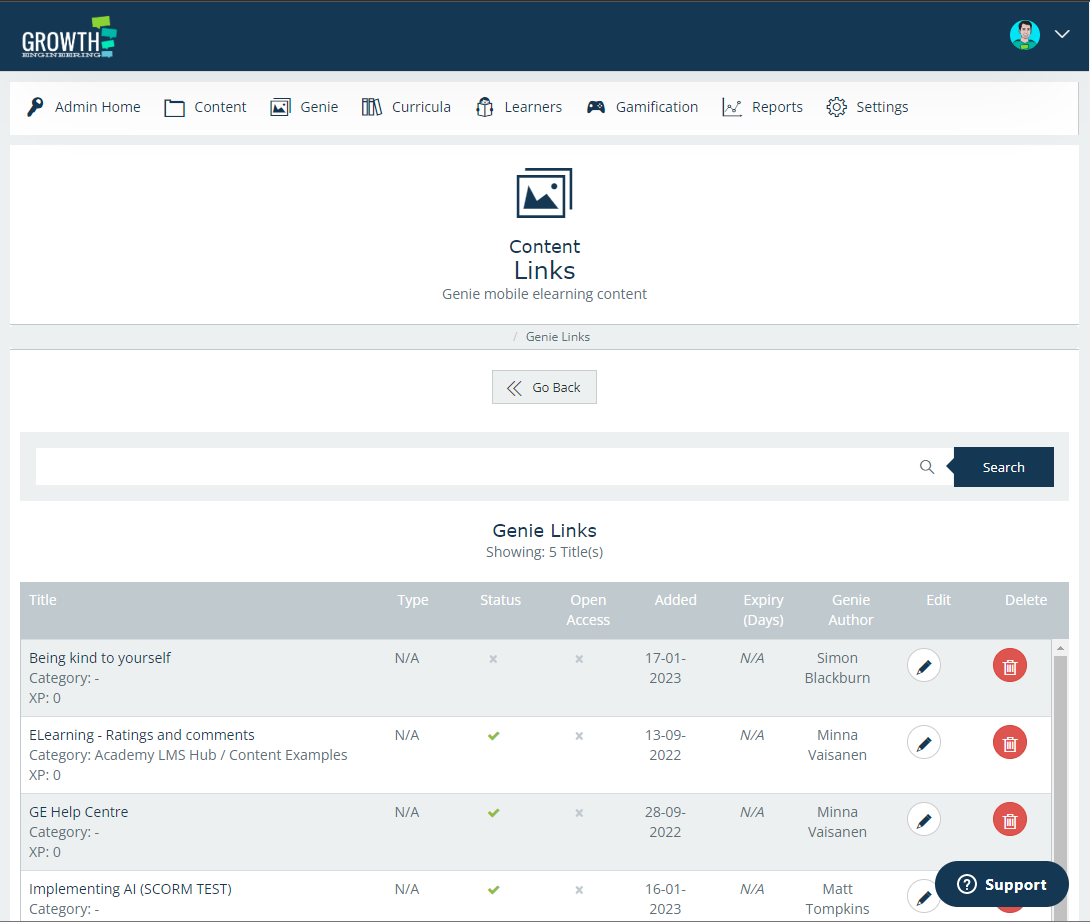
2, Place the Link in a category and set visibility for users using Content Groups.
3. Save changes, and the Scorm content will be available on your application, ready for users to devour!