
The eLearning Session Timeout feature helps ensure that learning activity is tracked accurately by automatically ending eLearning sessions after a period of inactivity. This prevents sessions from remaining active when learners are no longer engaged with the content and helps maintain reliable completion and time-tracking data.
📖 How eLearning Session Timeout Works
To help maintain accurate learning activity records, eLearning sessions are automatically monitored for inactivity.
- The session timeout period is 5 minutes and is system-defined.
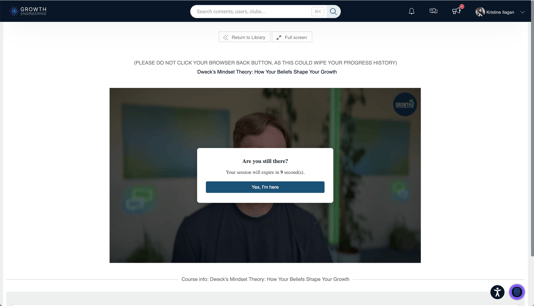
- If no activity is detected for 5 consecutive minutes, a confirmation prompt will appear.
- The prompt includes a 10-second countdown asking the learner to confirm that they are still actively using the eLearning module.
- If the learner confirms within the countdown period, the session will continue normally.
- If no confirmation is received before the countdown ends, the eLearning session will automatically be terminated.
- Once timed out, the learner will be redirected back to the previous page.
💡 Note: Any interaction within the eLearning module resets the inactivity timer and keeps the session active.
⏱️ Session Timeout Flow
- Learner launches an eLearning module.
- No activity is detected for 5 minutes.
- A 10-second confirmation countdown is displayed.
- The learner can confirm they are still active to continue the session.
- If no confirmation is received, the session is automatically ended.
- The learner is redirected to the previous page.
📘 Summary
The eLearning Session Timeout feature helps ensure learning activity is accurately tracked by preventing inactive sessions from remaining open indefinitely. After 5 minutes of inactivity, learners are given a final opportunity to continue their session before it is automatically ended and redirected.